Server Accounts
Turn on logins for a PSF Guard web server, give people editor or read-only access, and create API tokens for scripts and agents. The desktop app needs none of this: its own server listens on localhost only.
What a server with no accounts serves
The bind address decides. Reaching a loopback server already means reaching the machine, so it stays open. Any other address needs at least one account before it serves anything:
| Bind address | With no accounts |
|---|---|
127.0.0.1, ::1, localhost | Full access. The desktop app and local development use this. |
Anything else, including the default 0.0.0.0 | Every API request answers 401, reads included, until you add a user. |
--allow-database-management goes further: on a network
address the server will not start until an account exists, because those
routes name paths the server then reads and writes. Once it starts, only
editors can use them.
psf-guard users add editor --role
    read-write
. --allow-anonymous-access keeps it open
meanwhile.
Keep a network server open
--allow-anonymous-access gives every caller on a network
address what a localhost server gives, with no accounts and no login:
psf-guard server --host 0.0.0.0 --allow-anonymous-accessIt gives full editor access to anyone who can reach the port: grading,
imports, and, with --allow-database-management, the registry.
Use it only on a network you trust as much as the machine, or to upgrade an
older deployment without an outage. Then add accounts and drop the flag.
Editors and viewers
| Role | Can |
|---|---|
Read only (read-only) | Browse catalogs, images, quality results, exports and cached analysis. List, apply and export processing setups. Check the calibration library for duplicates. Save their own view choices. Cannot grade, edit, or open Settings. |
Editor (read-write) | Everything above, plus the work listed below. Database management adds the server paths. |
An editor can, with or without database management:
- grade, with undo and redo;
- edit projects, targets, coordinates and exposure plans, and move targets and exposures between projects;
- start quality scans, and imports from the database's own image folders;
- save, delete and import processing setups;
- keep calibration frames out or use them anyway, mark their validity, forget them, clear masters, and invalidate Target Scheduler flat coverage;
- set a project's exposure grouping and a catalog's AstroBin filter map, and fill in missing GUIDs;
- start, queue, cancel and publish WBPP runs in the runs folder the PixInsight settings name, take a run's masters in as stacks, and read a run's files;
- install Seiza catalogs into the configured catalog folder;
- add, check, change and remove sync peers, sync with them, and pair or unpair remote clients;
- move rejects to the trash, bring them back, and empty the trash;
- write server exports into the database's export folder, and apply sync previews.
By default a viewer cannot start costly work: stack builds, plate solves,
satellite predictions, or view processing. Cached results stay available.
allow_read_only_compute = true lets viewers start that work;
suitable for a trusted private server, not a public demo where repeated jobs could
use up CPU, network and cache space.
The server checks the role on every request, so a client calling the API directly gets no more. A viewer's header menu has no Settings, and grading controls are disabled.
What database management adds
--allow-database-management, always on in the desktop app,
guards what lets a client name a path on the server: a folder the server
reads, writes, lists or runs a program from. Without it, nobody can point a
server at the rest of its disk through the API. Work inside the folders an
operator already set, and edits to rows inside a catalog, stay an editor's.
With the gate on, an editor can also:
- register, create, change or remove databases, and set their image, export, process and remote-upload folders;
- import from a folder outside the database's image folders, and write a local export to a path of their choosing;
- choose storage folders and disk limits;
- set the PixInsight program and the WBPP runs folder, and give one run a folder outside that runs folder;
- switch Analyze new frames as they arrive, Pair calibrated and registered copies with their lights and Measure quality on the calibrated copy.
The gate also covers flat-group splits and joins and a light's flat side, the calibration duplicate repair, backups, and Planning's activation and pushes to the rigs. A viewer never gets any of these.
Whatever the gate, only an editor reads a WBPP run's files, a link inside a run folder cannot lead outside it, and no route reads a calibration frame outside the database's folders: a catalog that records one elsewhere, as a catalog synced from another machine may, shows it as missing.
Manage users
An editor signed in to a web server gets a Users tab in Settings: add users, record an optional email, change roles or passwords, and remove users. Changes take effect at once. Changing a role or password, or removing a user, signs out that user's sessions; changing only the email does not. Settings will not remove the account you are signed in with, or the last editor.
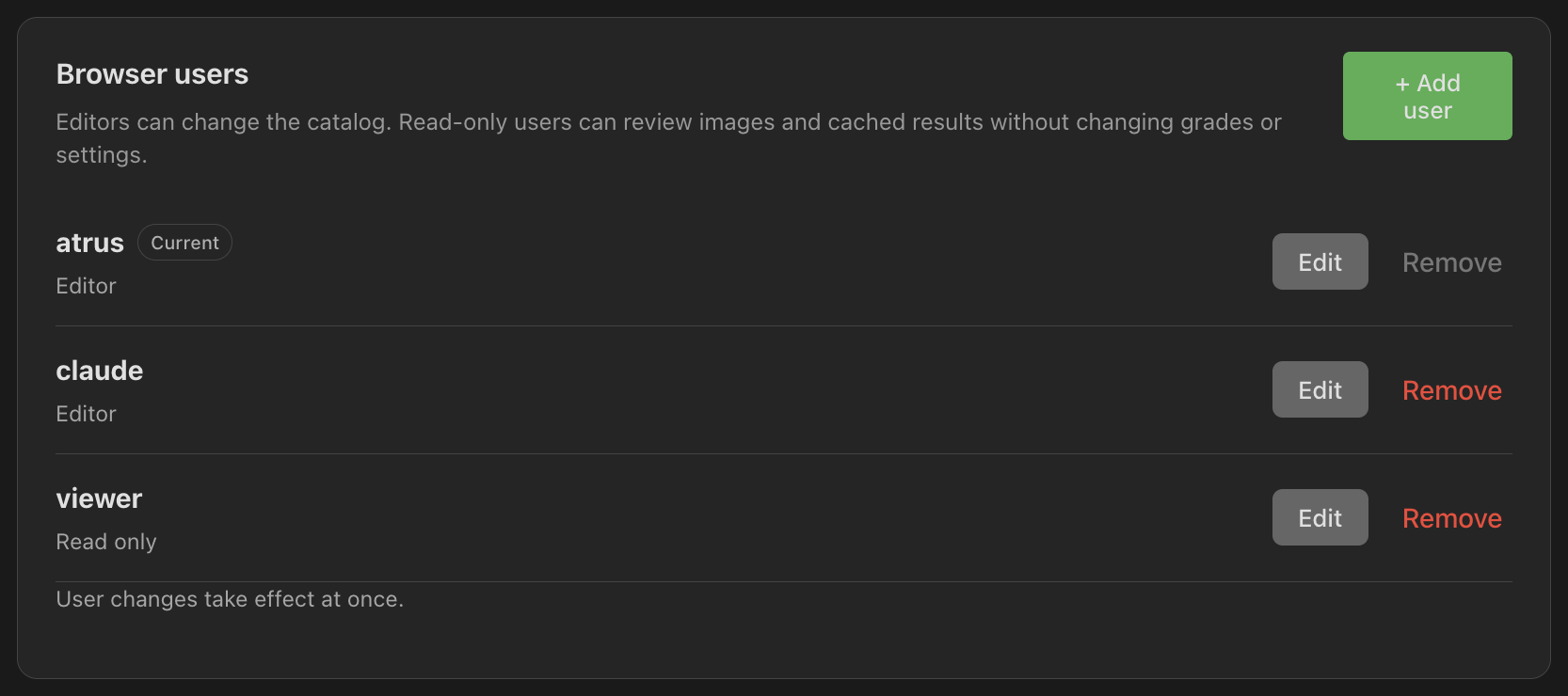
The CLI does the same. Without --password-file it asks for
the password twice and shows nothing:
psf-guard users add viewer --role read-only --email viewer@example.com
psf-guard users add editor --role read-write --password-file /run/secrets/editor
psf-guard users list
psf-guard users remove viewer

# In Docker
docker exec -it psf-guard psf-guard users add admin --role read-write- Passwords are stored as salted Argon2 hashes in
auth.jsonbeside the registry, never in clear, with mode0600on Unix. --replacechanges an existing user's role or password.- The CLI will not remove the last user unless you pass
--allow-empty; logins then turn off after a restart. - With a custom registry, pass the same
--registrytousersandserver./srv/psf-guard/catalogs.jsonkeeps its users in/srv/psf-guard/catalogs.auth.json. - Restart the server after a CLI change. Sessions stay valid until then.
- An
auth.jsonwritten by a newer PSF Guard still loads. Fields this version does not know are kept and written back unchanged.
Sign in
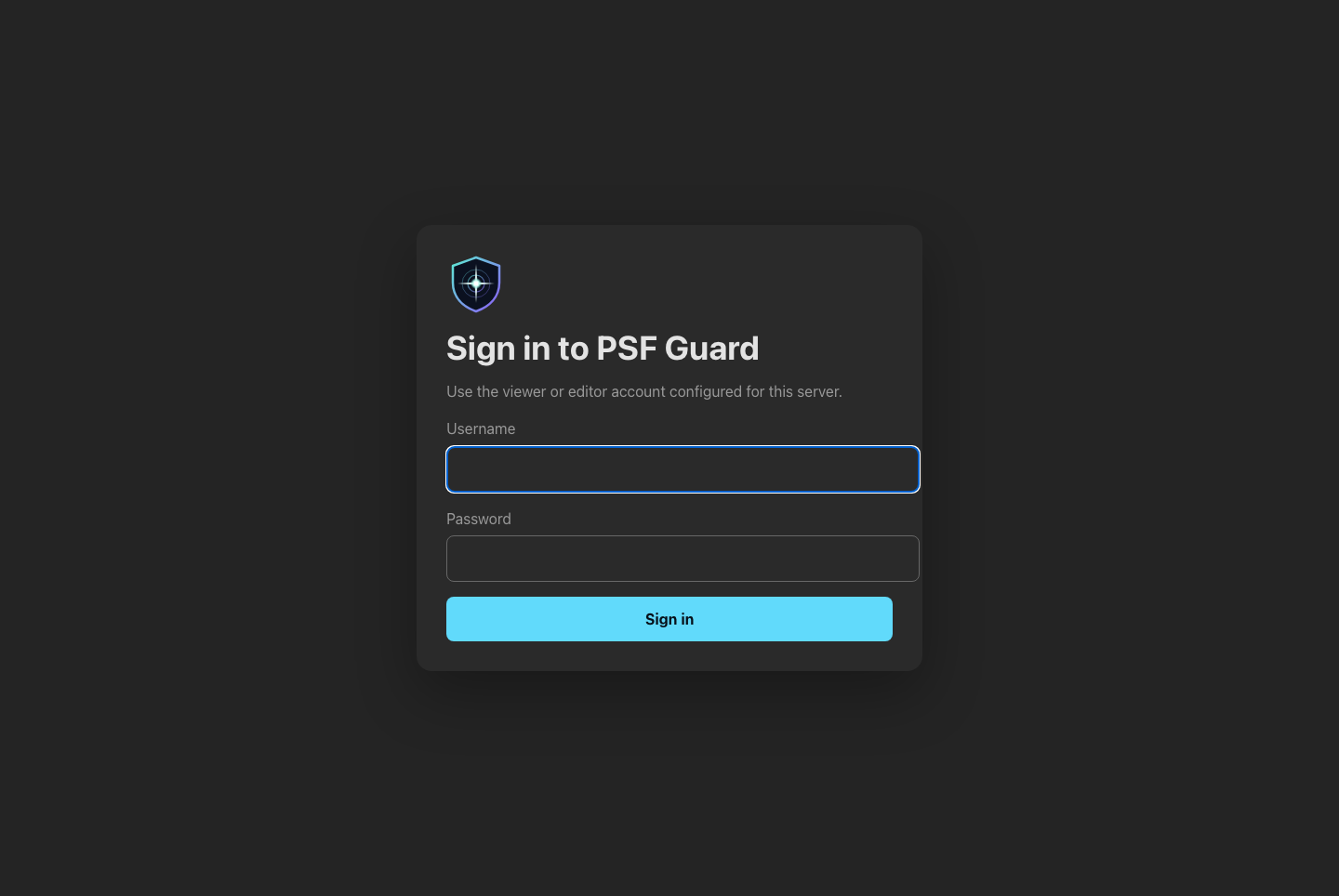
Once auth.json contains a user account, the browser shows a login
page. A login sets an HttpOnly, SameSite=Strict session cookie. Sessions live in
server memory, expire after session_hours, and end when the server
restarts or you sign out.
After signing in, PSF Guard checks that the browser saved the session, then reloads the current URL. This loads the current UI after a server update while keeping your view and catalog scope. Failed sign-ins stay on the login form with an error message.
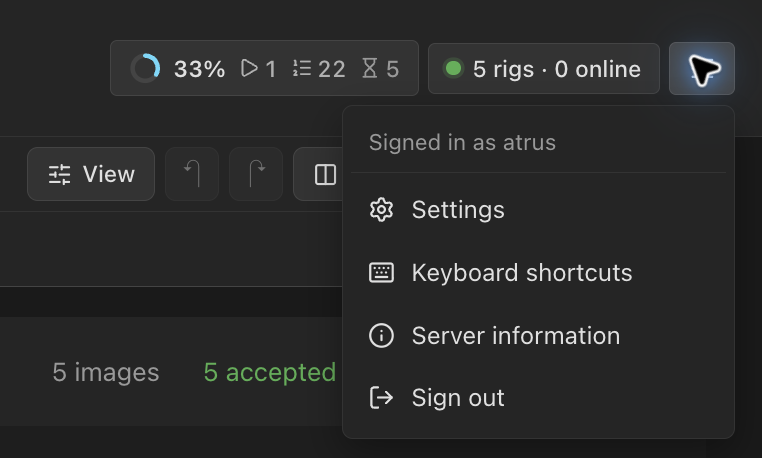
Signed in, the menu at the right of the header shows your username and includes Settings (editors only), Keyboard shortcuts, Server information and Sign out.
[server.auth]
session_hours = 168
# Omit to follow the browser's HTTP or HTTPS scheme.
#secure_cookie = true
allow_read_only_compute = false
secure_cookie | Cookie |
|---|---|
| Omitted | A same-origin login over HTTPS gets a Secure cookie; over direct HTTP, a plain one. A proxy must keep the Host header. A request whose Origin does not match Host, or that sends no Origin, gets a Secure cookie. |
true | Always Secure: HTTPS only. |
false | Never Secure: for a direct HTTP client that sends no Origin, or a plain-HTTP proxy that rewrites Host. |
Over plain HTTP, anyone who can watch the connection sees the password and the session. Each port uses its own cookie name, so two local servers no longer sign each other out.
View choices follow the account
- Images and Sequence: the sort order, the grouping, the thumbnail sizes, the chips, and the night and hour marks.
- Sequence scoring: the defaults each view's Scoring control starts from.
- The Library's compact or detailed rows, the project picker's grouping, and moving on after a grade.
Sort order, grouping and scoring values in a link override saved preferences. Each change saves only what it changed, so a tab left open never undoes a choice made since on another device. The first account to sign in inherits that browser's saved choices; later accounts start from the defaults. Viewers can save their choices too, including scoring defaults with the Scoring control's Save as default.
The server keeps them in user-preferences.json beside
auth.json, mode 0600 on Unix. Removing a user
removes their choices. The image detail's folded panels stay in each
browser, and exposure grouping stays a project setting shared by everyone.
Without accounts, and in the desktop app, the browser keeps the
choices.
API tokens for scripts and agents
A personal API token lets a script or an MCP client act as a user without a browser login. Send it as a bearer credential:
curl -H "Authorization: Bearer psfg_…" https://guard.example/api/databasesFor Claude Code or Codex, open Settings → Users → API tokens and click Connect an agent. It makes a token of your own, read only unless you tick Let it grade and start jobs, and shows the setup to paste; see MCP for Agents.
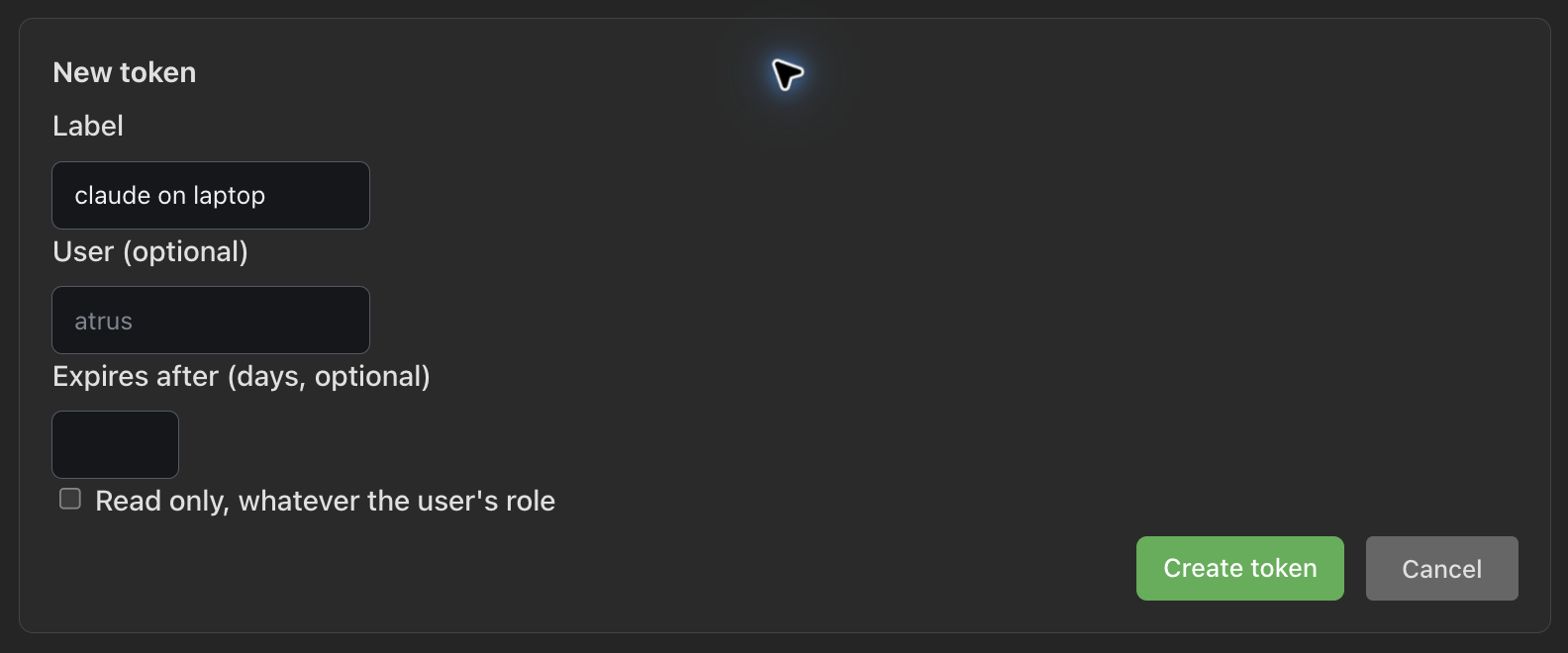
For anything else, click + New token. Give it a Label, optionally an expiry in Expires after (days, optional), and tick Read only, whatever the user's role for a token that only reads. An editor can enter another user's name in User (optional), which is how a viewer, who has no Settings, gets one. Click Create token and copy it: it is not shown again. Revoke stops a token at once.
psf-guard users token create editor --label "claude on laptop" --read-only --expires-days 90
psf-guard users token list
psf-guard users token revoke <id>- A token never gets more than its user has. A viewer's token reads; an editor's token can also write, unless it was made read only.
- A token cannot mint or revoke tokens. That takes a signed-in session, so a leaked token cannot renew itself.
- Removing a user removes that user's tokens.
auth.jsonkeeps each token's SHA-256, owner, label and dates, never the token. Tokens made in Settings work at once; restart the server after a CLI change.
See MCP for Agents for what an agent can do with one. Scripts can also log in with a cookie jar:
curl -c psf-guard.cookies -H "Content-Type: application/json" \
  -d '{"username":"editor","password":"..."}' \
  https://guard.example/api/auth/login

curl -b psf-guard.cookies https://guard.example/api/databases
Credentials for remote clients
Remote image uploads and scheduler sync use their own
Authorization: Bearer keys, each scoped to one catalog. They
work with or without browser accounts, so a headless intake server runs on
them alone.
To pair a client, an editor opens Settings → Databases, edits the catalog, and clicks Generate pairing code beside Pair a client. The code works once, for an hour. The client gets the catalog ID and its own credential; the server keeps only a digest, and the N.I.N.A. plugin keeps the credential in Windows Credential Manager. Pairing turns on scheduler sync. Image uploads stay a separate choice with their own receive directory.
Paired clients lists each installation. Revoking one leaves browser sessions, other clients and the manual Remote API key alone, and replacing the manual key leaves paired clients alone. See N.I.N.A. Sync Plugin.
The Director plugin pairs separately, with its own one-use codes and credentials. A sync key or pairing code grants no Planning access, and API tokens cannot issue or revoke Director clients. Director plugin pairing is an early beta; Target Scheduler with the PSF Guard Sync plugin is the main way to run a rig today.
Deploy safely
- Put a public server behind HTTPS. Otherwise passwords cross the network in clear text.
- Keep
auth.jsonreadable only by the PSF Guard user. - Seed the first account from an existing secret with
--password-file; only the hash is written. - Leave
--allow-database-managementoff unless editors need to name server paths from the browser. An editor login does not bypass it, and it does not bypass the login: on a network address the server needs both. - Treat
--allow-anonymous-accessas temporary. A public server running it has no access control. - Signing out ends that session. A restart ends every browser session.