Export & AstroBin
Gather reviewed lights and their matched calibration frames into a folder tree for another stacker, without moving or changing your source files. Write the acquisition CSV that AstroBin's upload page imports.
Choose a tree grouped by target, or a PixInsight WBPP tree with its runner script.
Where to export
| Where | Result |
|---|---|
| Desktop app | A folder you choose. Hard links on the same drive, copies elsewhere. |
| Browser | A zip download, or a background export on the server when the database has a server export directory. |
| CLI | A folder: copies, hard links, clones, symbolic links, or a WBPP runner that points to the frames where they are. |
| HTTP API | A zip stream, a folder on the server, or a background export into the server export directory. |
What goes in
| Grade | Exported |
|---|---|
| Accepted | Always, scoped by project, target or filter. |
| Pending | When Include ungraded lights is ticked, which it is by default in the dialog. The CLI and API add them with --include-pending or include_pending. |
| Rejected | Never. |
Export reads grades and file names from the catalog and finds the files under its image folders. It never changes grades, edits files or moves anything out of the source library.
Leave out lights that can't be calibrated
With Leave out lights that can't be calibrated on, under Settings → Calibration → Stacks and exports, every export leaves out the lights a stack would: those a light check flags for a missing flat, bias or dark, or flats past the age limit. Checks set to Check only or Off do not exclude lights. This holds in either layout, from the dialog, the server export directory, a download, the CLI and the AstroBin export. Each export reports how many lights it excluded, with an example and the reason for excluding it:
- the desktop app's summary and a server export's finished line, such as
3 lights that can't be calibrated left out (…); - a
LEFT-OUT-UNCALIBRATED.txtnote in a download, listing every one; - the CLI's output;
- the WBPP runner scripts.

Export from the Library
- Finish grading the frames you want to stack.
- In the Library, open the project's full card. Click Export on the project for all its targets, or on one target's row.
- In the dialog, choose whether to include ungraded lights, the Layout, the WBPP settings for a WBPP tree, and how the Files land.
- Click Choose folder… in the desktop app, Download zip in a browser, or Start export when the database has a server export directory.
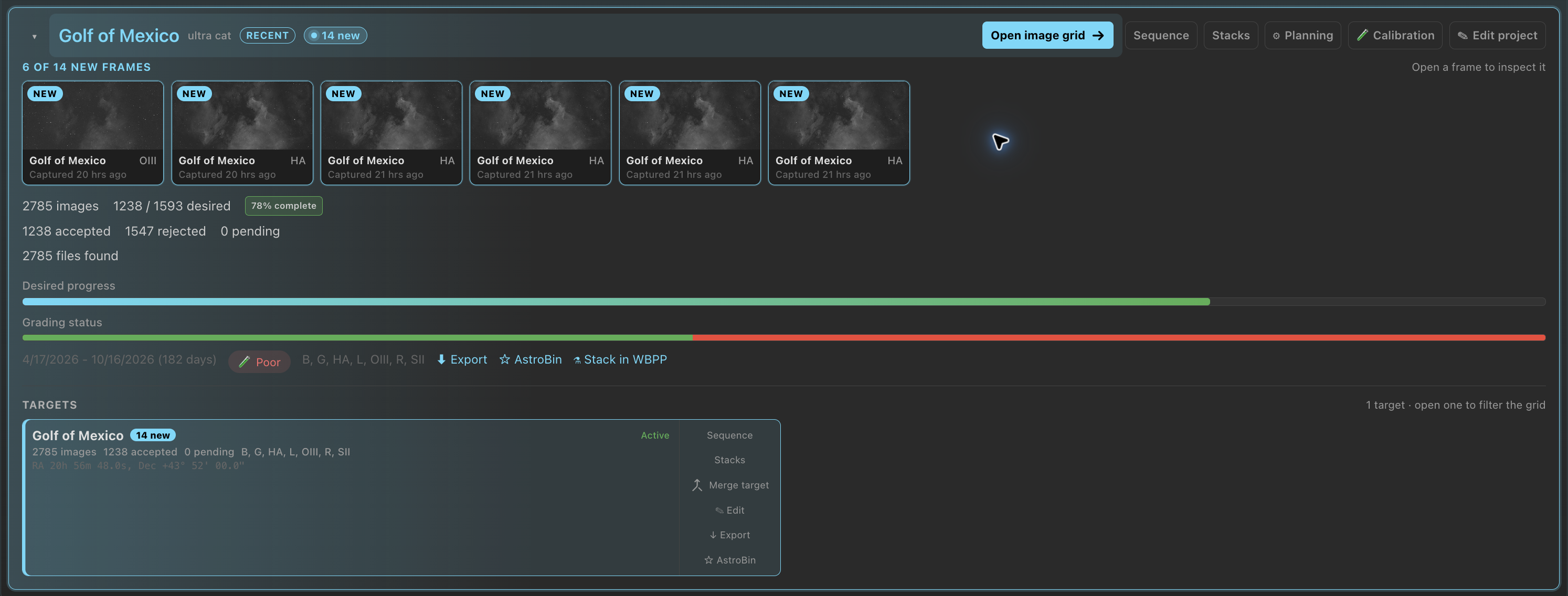
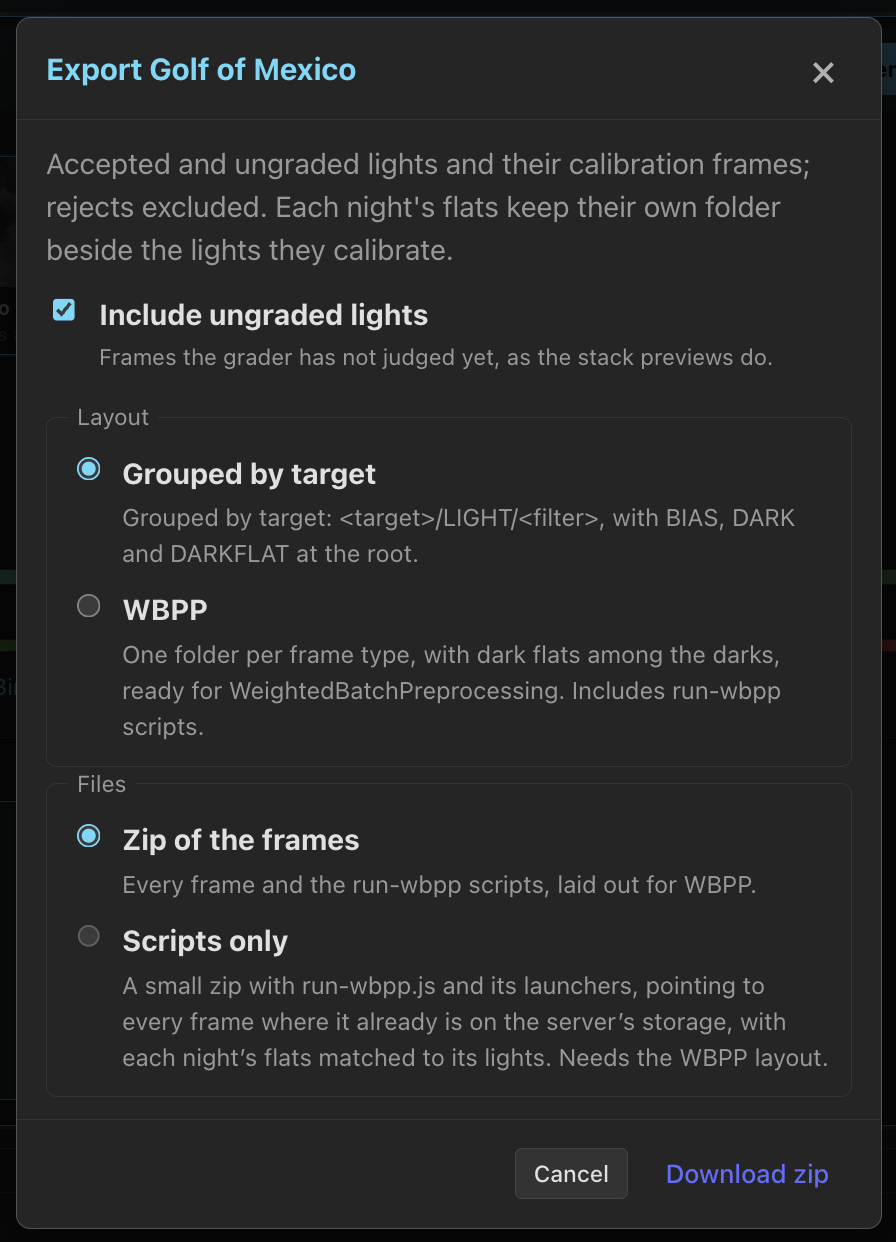
Export appears when the project or target has at least one accepted frame and PSF Guard found its files. Settings → Setups → Export sets the Default layout and WBPP settings each dialog starts from. They are server-wide and shared by the desktop app and browsers.
How the files land:
| Files | What it does |
|---|---|
| Copy | The export stands on its own. The desktop app hard-links on the same drive; a server export clones where the filesystem allows. Both copy otherwise. |
| Link to the originals | Symbolic links, so the tree takes no space and can point at a network mount. Whatever reads it must see the originals at the same paths. |
| Reference in place | Copies nothing. Writes only the WBPP runner, which points to every frame where it is. WBPP layout only. |
| Zip of the frames | Browser download: every frame, plus the runner scripts for a WBPP tree. |
| Scripts only | Browser download: a small zip of the runner scripts, pointing to each frame where it sits on the server. WBPP layout only. |
With Reference in place, Server path is the
folder the frame list is relative to, filled with what the database's image
folders share. PixInsight path is the same folder on the
PixInsight machine, if it differs. Server path
/mnt/barium/astrobin and PixInsight path P:\ list
the frames as P:/_ByTelescope/…. A frame outside the server path
keeps its full path.
Desktop app
The desktop app writes into the chosen folder. It tries a hard link first, which is instant and takes no extra space on the same filesystem, and copies when it cannot link. A summary counts linked, copied, already present, missing and failed files, the lights left out because they can't be calibrated, and the lights with flats from across a measured change.
Browser
Without a server export directory, the browser streams an uncompressed zip. Image data does not compress well, so store mode saves CPU and the download starts at once.
Server export directory
For a NAS or headless server, set an absolute Server export
directory under Settings → Databases → Edit,
or export_dir in the registry entry. Export then
starts a background job that writes a subfolder for the project or target
and shows its progress.
Layouts
Grouped by target is the default and suits Siril and manual processing:
destination/
├── BIAS/
├── DARK/300s_G100/
├── DARKFLAT/2s_G100/
└── California Nebula/
    ├── FLAT/HA/SESSION_2026-08-18/
    └── LIGHT/HA/
Flats stay under the target whose lights chose them, in a folder per night: two targets, or two nights of one target, can need different flats for one filter, and merging them would build the wrong master. Folders are dated by the night calibration gives the flats, split at local noon where they were shot, so dusk and dawn flats share one date.
In either layout, flats follow the rig's
flat groups, as a stack's do: a light
takes flats from its own side of each measured change. Lights of one night
that take different flats get a folder each,
SESSION_<night>-<digest>. A light a stack would
give flats corrected across a change gets the flats as shot, in a
SESSION_<night>-across-<key> folder of its own,
since other stackers cannot apply the correction. The export summary
counts those lights, and a download carries a
FLATS-ACROSS-A-CHANGE.txt note that lists them.
WBPP uses the frame-type roots that PixInsight's WeightedBatchPreprocessing expects:
destination/
├── bias/G100/
├── darks/300s_G100/
├── flats/California Nebula/HA/SESSION_2026-08-18/
├── lights/California Nebula/HA/SESSION_2026-08-18/
├── run-wbpp.js
├── run-wbpp.sh
└── run-wbpp.cmd
Dark flats go in darks/, since WBPP pairs a dark to a flat by
exposure. Each light's path includes the same session as its flats, and the
runner tells WBPP to group by SESSION, so each night's lights
calibrate with that night's flats while bias and darks serve every
night.
Dark sets per night
A WBPP export builds the same dark masters a stack would. When lights of
one exposure and gain were matched to different darks, say each to its own
complete night, each set of darks goes in a
darks/300s_G100/DARKSET_<night>/ folder named for its
nearest dark, and each light's path includes its set. The runner groups by
SESSION and DARKSET, so each set serves only its own
lights and WBPP no longer averages every night's darks into one master.
When the lights share one set, there is no DARKSET folder.
Both layouts keep each file's name. When two files would land at the same path, the later one gains a number instead of overwriting the first.
Run a WBPP export
A WBPP export carries three files:
run-wbpp.js, the PixInsight script. It holds the frames, the WBPP settings, and the per-group drizzle and Fast Integration choices WBPP has no command-line parameter for.run-wbpp.shandrun-wbpp.cmdstart PixInsight on that script, writing towbpp-outbeside it. SetPI_ROOTorPI_BINwhen PixInsight is not in the standard place.
By default the script loads the frames and stops at WBPP's dialog, so you
can check the groups and references before an hour of integration. Append
,run to PARAMS in the launcher to go straight
through. Anything else appended to PARAMS reaches WBPP. On a
Linux machine without a display, run xvfb-run -a ./run-wbpp.sh.
The runner scripts carry notes on how the calibration frames were chosen:
- the current matching settings that differ from the defaults, with
who set them, such as
Use darks: off (for Askar 120 · ZWO ASI2600MM
      Pro)
, or that the defaults chose them; - the rigs that export no darks;
- how many lights were left out because they can't be calibrated, with an example and the reason for excluding it;
- the flat changes the flats were chosen around, and the lights that take flats from across one;
- frames an earlier export left in the folder. An export into a folder that already holds one keeps the earlier files, and WBPP scans each frame folder whole, so the runner warns when it finds frames this export did not place. Remove them or export to an empty folder.
WBPP writes to its own console and logs, not the terminal. Masters land in
wbpp-out/master and calibrated frames in
wbpp-out/calibrated; read wbpp-out/logs/*.log for
the outcome. To run WBPP on the server from PSF Guard instead, see
WBPP Runs; the settings are explained there.
Export from the command line
# Preview the plan, then copy accepted lights and their calibration frames
psf-guard export my-db --dest ./stacking --dry-run
psf-guard export my-db --dest ./stacking

# A WBPP tree with its runner scripts
psf-guard export my-db --dest ./stacking --layout wbpp

# Only the runner, pointing to frames where they are, for PixInsight on P:\
psf-guard export my-db --dest ./wbpp-run --layout wbpp \
  --placement reference --local-root /mnt/barium/astrobin --remote-root 'P:\'

# One target and filter; hard-link when possible
psf-guard export my-db --dest ./stacking \
  --target "California Nebula" --filter HA --link

# A raw SQLite path needs its image folders
psf-guard export schedulerdb.sqlite --dest ./stacking \
--image-dirs /data/lights,/archive/lights| Option | Effect |
|---|---|
--project NAME | Project name, substring match |
--target NAME | Target name, substring match |
--filter NAME | One filter, exact match ignoring case |
--include-pending | Add Pending frames; Rejected still stay out |
--layout standard|wbpp | Grouped by target (default) or the WBPP tree with its runner |
--placement MODE | copy (default), hardlink, reflink, symlink, or reference (WBPP only) |
--link | Same as --placement hardlink: hard-link, else copy |
--local-root, --remote-root | For reference: the folder frames are listed below, as this machine and the PixInsight machine see it |
--wbpp-quality | maximum (default), good, fast |
--wbpp-fast-integration | off (default), auto, on |
--wbpp-drizzle | off (default), 2x, 3x |
--wbpp-autocrop | true or false; WBPP's default is on |
--wbpp-rejection | auto, winsorized-sigma, linear-fit, esd, rcr, percentile-clip |
--dry-run | Print the plan without writing files |
--image-dirs DIRS | Comma-separated image folders for a raw database path |
--registry PATH | The database registry, which also holds the Settings → Calibration values the export matches by; defaults to the platform config directory |
The CLI matches calibration frames by the same settings as the app, read from the registry, and with Leave out lights that can't be calibrated on, the export reports how many lights it excluded, with an example and the reason for excluding it.
Export again after each session
- A file already at the destination with the expected size counts as present and is skipped.
- Newly accepted frames are added on the next run.
- Files that cannot be found are reported and do not stop the rest.
Write the AstroBin acquisition CSV
AstroBin's upload page takes a CSV of imaging sessions on its acquisition step. Click AstroBin next to Export on a project's full card or a target row in the Library. The dialog previews the rows, offers Copy CSV and Download CSV, and asks for the AstroBin id of any filter it does not know yet.
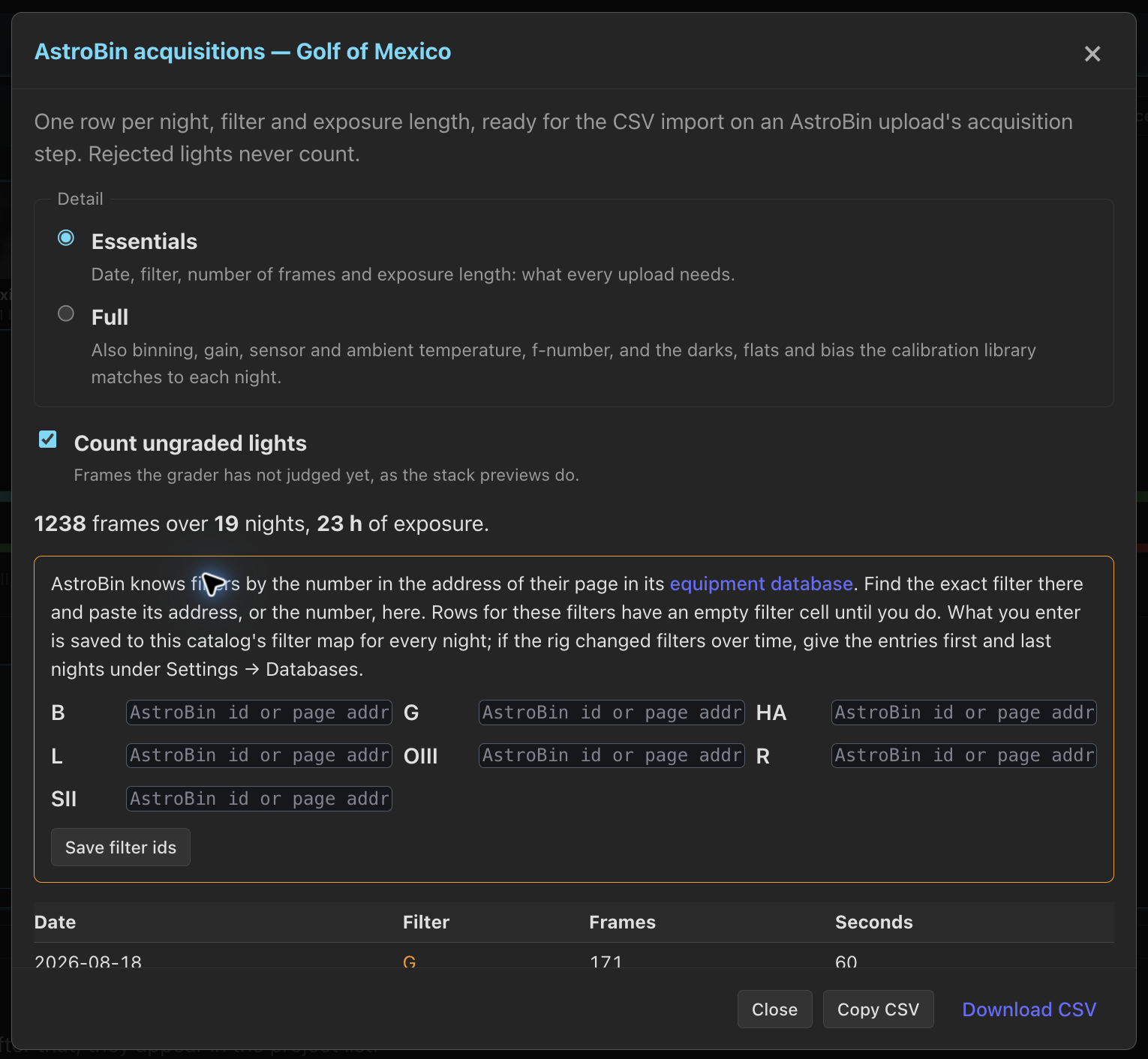
A row is one night, one filter and one exposure length. Nights split where the catalog's lights are never captured, as in Sky Coverage, so a session past midnight stays one row. Accepted lights always count, ungraded lights count unless you untick Count ungraded lights, and rejected lights never count.
| Detail | Columns |
|---|---|
| Essentials (default) | date, filter, number, duration. Reads only the catalog, so it is instant, unless lights that can't be calibrated are left out. |
| Full | Adds binning, gain, sensorCooling (mean sensor temperature), fNumber, the darks, flats, flatDarks and bias a stack would use for that night and filter, and temperature (mean focuser probe temperature). Rows also split by binning and gain. |
Full detail reads one light per night and filter from disk, header only.
Columns PSF Guard cannot know, such as bortle and
meanFwhm, are left out, and AstroBin treats them as blank.
With Leave out lights that can't be calibrated on, either level counts only the lights a stack would integrate. The export reads each light's header, judges it as a stack does, and notes how many lights it left out, with an example and the reason for excluding it. That needs the image folders; without them, the export counts every light and reports that choice.
Filter ids
AstroBin knows a filter by the number in its equipment page's address,
for example …/equipment/explorer/filter/4049/…, not by name. A
catalog's "G" says nothing about which G, so each catalog keeps its own
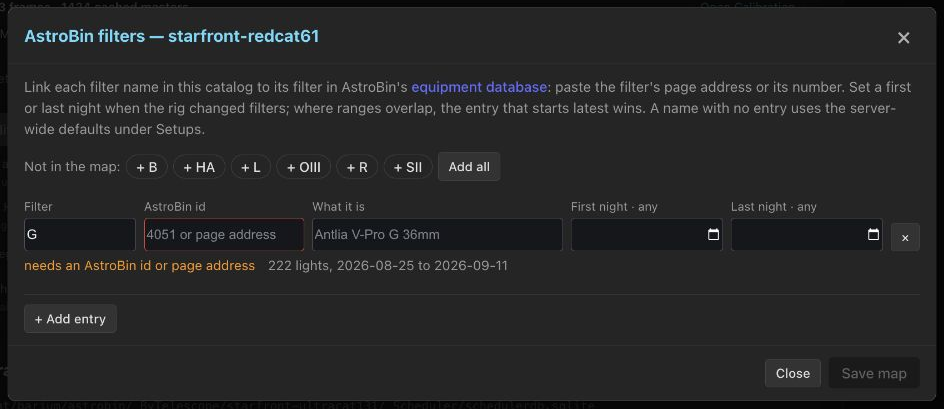
filter map under Settings → Databases → AstroBin
filters: the name as the catalog spells it, the AstroBin id, what
the filter is, and, when the rig's filter changed, the first and last night
the entry covers. Paste the filter's page address or the number alone. Each
saved id links back to its page.
The map lives in the catalog, so it travels with the rig's database, and an editor can change it. Ids you enter in the export dialog are saved to this catalog's map with Save filter ids. Settings → Setups → AstroBin holds server-wide defaults by name for names no catalog entry covers. A filter with no id gets a blank cell, and the rest of the row still imports.
Click Edit filters for the catalog. Under Not in the map, choose a filter or click Add all. PSF Guard adds the catalog's filter names and fills in any server-wide default IDs. Enter each filter's AstroBin ID or page address. Use First night and Last night when an entry applies only to part of the capture history, then click Save map.
The CLI writes the same file:
psf-guard astrobin-csv my-db --target-id 12
psf-guard astrobin-csv my-db --project-id 3 --detail full --include-pending -o m31.csv
psf-guard astrobin-csv my-db --target-id 12 --filter-id L=4049 --filter-id Ha=4051
my-db is a registry slug or a Target Scheduler database path.
--detail full needs the image folders, from the registry entry
or --image-dirs. On AstroBin, choose the CSV import on the
acquisition step and paste or upload the file. AstroBin drops a value it
cannot read without saying so, so check the rows in PSF Guard's preview
first.
HTTP API
# Stream one target and its calibration frames as a WBPP zip
curl "http://localhost:3000/api/db/my-db/export?target_id=42&layout=wbpp" \
  --output psf-guard-export.zip

# Only the runner scripts, pointing to frames where they sit on the server
curl "http://localhost:3000/api/db/my-db/export?target_id=42&layout=wbpp&placement=reference" \
  --output wbpp-scripts.zip

# Preview a folder export on the server's own filesystem
curl -X POST "http://localhost:3000/api/db/my-db/export/local" \
  -H "Content-Type: application/json" \
  -d '{"dest":"/data/stacking","project_id":7,"layout":"wbpp","dry_run":true}'

# Start and poll an export below the configured server directory
curl -X POST "http://localhost:3000/api/db/my-db/export/server" \
  -H "Content-Type: application/json" \
  -d '{"project_id":7,"layout":"wbpp","subdirectory":"project-7"}'
curl "http://localhost:3000/api/db/my-db/export/server"

# The AstroBin CSV for one target
curl "http://localhost:3000/api/db/my-db/astrobin-export.csv?target_id=42&detail=full" \
  --output m31.csv
The zip route and the AstroBin route only read. The local route can write
anywhere on the server, so it needs --allow-database-management.
The server route writes only below the configured export_dir
and takes one subdirectory name.
All export routes take project_id, target_id,
include_pending, filter_name, layout
(standard or wbpp), placement,
local_root and remote_root. The zip route takes the
WBPP settings as wbpp_quality, wbpp_fast_integration,
wbpp_drizzle, wbpp_autocrop and
wbpp_rejection; the POST routes take them as a
wbpp object. The local route also takes dry_run.
Finish FITS and XISF in Photoshop
The separate FITS and XISF Photoshop plugins, built on Seiza's image codecs, open your stacks and masters in Photoshop. They import 32-bit float or rescaled 16-bit images, can debayer Bayer mosaics to RGB, and save at the document's 16- or 32-bit depth by default.
Download the latest release: a Windows x64 installer or manual plugin zip, or a signed and notarized universal macOS DMG. Close Photoshop first. On macOS, drag both plugin bundles onto the DMG's Photoshop Plug-ins shortcut, eject it, and restart Photoshop. Since 0.5.0 the Windows plugins and installer are signed by StackFoundry LLC. See the installation guide for each platform.
Set defaults in Help → About Plug-In → FITS/XISF on Windows or Photoshop → About Plug-In → FITS/XISF on macOS. Open asks how to import by default; Remember choice saves the answer. Save follows the document depth without asking.
Troubleshooting
| Symptom | Check |
|---|---|
| No Export action | The scope needs an Accepted frame, with its file found under the database's image folders. |
nothing to export | Check the project, target and filter scope, the grades, the image folders, and whether Pending frames should count. |
| Hard links became copies | Hard links need the source and destination on one filesystem that supports them. |
| Zip stops or will not open | A source file became unreadable during the stream. Check file access and download again. |
| Calibration frames missing | Open the project's coverage report. Only frames that safely match the lights under Settings → Calibration are exported, and frames the library keeps out stay out. |
| Fewer lights than the project holds | Leave out lights that can't be calibrated is on. The summary and the CLI output say how many, with an example and the reason for excluding it; LEFT-OUT-UNCALIBRATED.txt in a download lists every one. |
| Frames from an earlier export in the WBPP tree | The runner warns about them. Remove them or export to an empty folder. |
| Reference in place unavailable | Choose the WBPP layout first. |
| The runner reports frames it cannot find | The frames are not at the listed paths on the PixInsight machine. Check PixInsight path, or edit psfSourceRoot at the top of run-wbpp.js. |
| AstroBin shows no filter | Give the filter an id in the catalog's AstroBin filter map or the dialog. |