Planning
Plan a target once for every rig that shoots it. Frame it on the sky, set goals per filter, and write the result into each rig's Target Scheduler database. Plans live in the Library beside the projects they shoot.
Planning is on for every server. A server without database management plans read only: framing and goals save as drafts, and activation and Target Scheduler edits are refused.
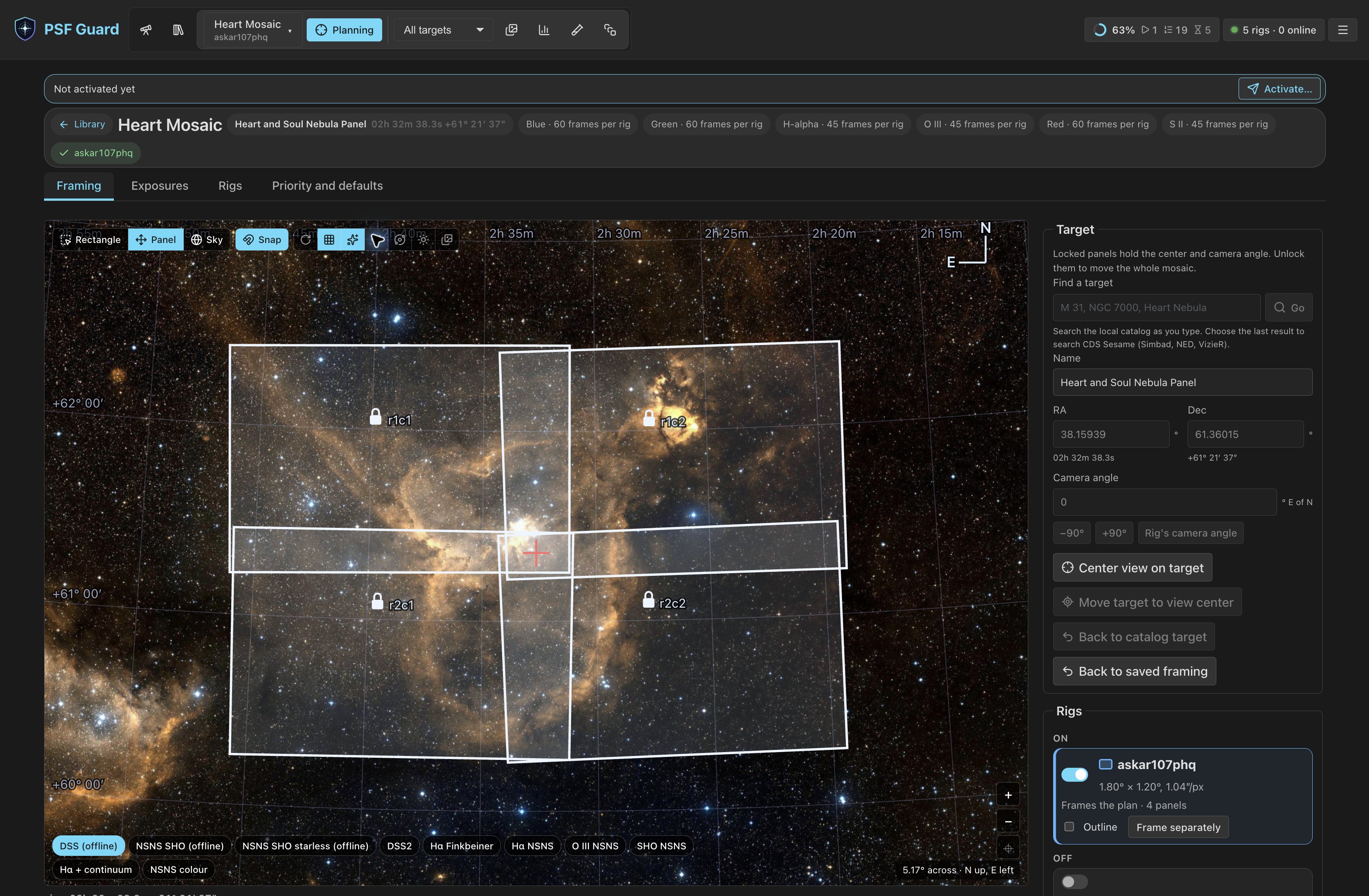
Rigs and plans appear on their own
When you open the Library, PSF Guard creates a rig for each registered database and a plan for each Target Scheduler project. No separate setup is needed.
- Projects that share a Target Scheduler GUID across databases, as Sync copies do, become one plan shot by several rigs. Projects that only share a name stay separate plans.
- Existing Target Scheduler data supplies the plan's first draft: its targets become the framing, with a mosaic grid when the targets form one, and its exposure plans become goals per filter. Each band's template and exposure come from its main exposure plan: one of a second or more, then the one asking for the most frames, so a short test plan never sets them.
- Planning never adds objectives on its own: an imported project keeps one objective per filter. A second exposure length on a filter is listed under Turns off at activation until Take Target Scheduler's values brings it in as an objective of its own.
- Until you save or activate the plan, it follows Target Scheduler. A desired count raised or a target moved in N.I.N.A. shows up on the next listing. After the first save, the drafts are yours.
- A plan covers one target or one mosaic. A project of separate targets is drafted from its first target, and Target Scheduler keeps running the rest.
PSF Guard recognizes the same rig after you move or rename its database. N.I.N.A. and Target Scheduler can still open the database.
Plans in the Library
Find plans in the Library, alongside their projects. A plan shared by several rigs shows N rigs, total progress and its stage (Framed, Planned or Activated on N rigs). Click ⚙ to open the plan's workspace. Each rig has its own row, with separate targets and frame counts for each rig.
Activated on N rigs counts the rigs the last activation wrote. It is not Target Scheduler's Active state, which each rig's row shows in its own pill.
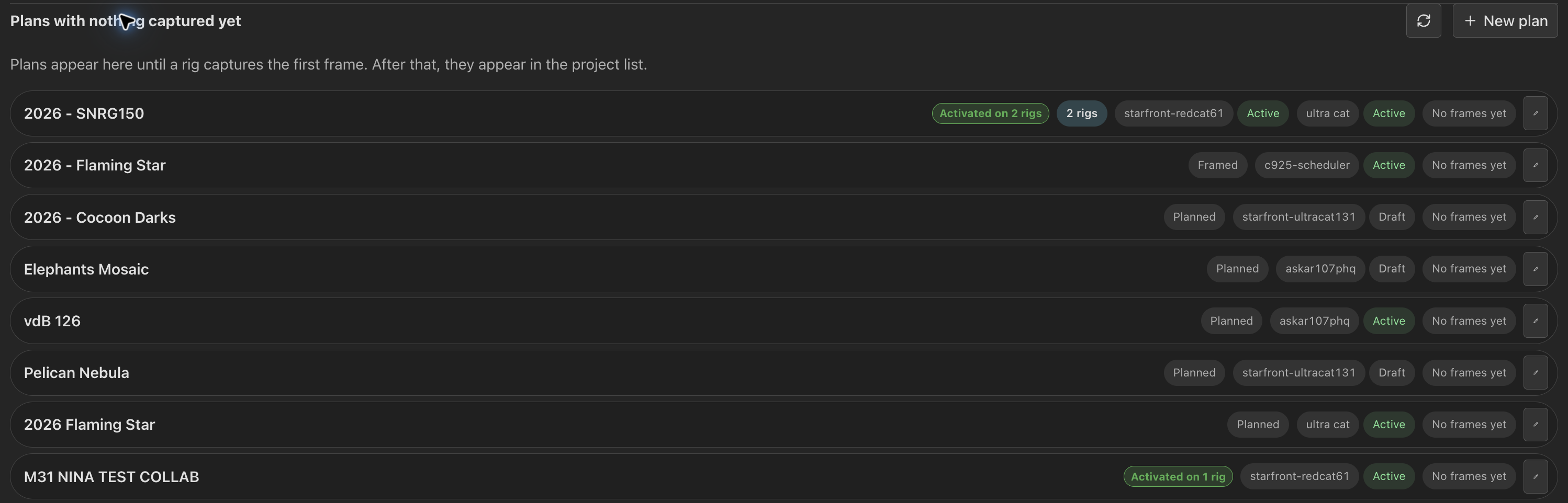
- Planning on a detailed card, or ⚙ on a compact row, opens the plan's workspace.
- Plans with nothing captured yet, below the projects, lists framed plans with no assigned rig and plans activated on rigs that have not captured a frame. New plan starts one; the pencil renames one.
- The Show menu and search box filter plans and projects together. Choose No database to see plans with no assigned rig.
- On a server that allows database management, use a row's state menu to choose Active, Inactive, Draft or Closed. PSF Guard asks you to confirm the project, state and database before saving the change to Target Scheduler. Target Scheduler uses the new state when it next chooses a target. Canceling leaves the saved state unchanged.
Open a plan's workspace
Choose a project, then click Planning, including for a project imported from image folders. If the catalog cannot be planned, Planning shows the problem and Retry planning. Copying a database does not create a second rig: PSF Guard excludes the copy from planning while the original is registered. Use the original catalog. PSF Guard shows Fill in GUIDs guidance only when the selected project has no GUID.
Choose Planning or ⚙ on a Library row, or pick the project in the header and choose the Planning tab there. A plan with no database yet starts its framing from a name or typed coordinates.
The workspace has a summary at the top (target, goals, each rig's setup, and whether each rig matches the saved plan) and four tabs:
| Tab | Contents |
|---|---|
| Framing | The target, camera angle, mosaic grid and each rig's field on a survey image, with tonight's visibility. See Framing. |
| Exposures | Goals per filter, and for each rig its template, exposure length, frames and progress. See Exposures. |
| Rigs | Each rig's database project, its Target Scheduler settings and targets, and the plan's scheduling limits. See Rigs tab. |
| Priority and defaults | Project order and scheduling defaults for every plan, a site or a rig. |
The workspace address is /plan?plan=<key>. The key is the Target
Scheduler GUID the plan's rigs share, so one link opens the same plan on any PSF Guard
server with those databases. The open tab is part of the address.
Save from one bar
Edits wait for the save bar at the top of the page. It shows every section with unsaved changes and lists what changed. Switching tabs keeps edits. Leaving the page, closing the tab, or opening another plan with edits unsaved asks first.
A copy saved elsewhere never replaces your edits. The page reports that the plan changed and offers Reload; the bar will not save over it.
Activate
Activation writes the saved plan into each rig's Target Scheduler database, and decides which of the project's exposure plans run there. The summary shows the activation status:
- Activated: each rig matches the saved plan.
- Needs activating: activation would change a rig's Target Scheduler rows. The tooltip explains why.
- Couldn't check the rigs, or Couldn't check and a rig's name: a rig database could not be read. The tooltip explains why. No activation prompt appears.
- Can't activate yet: what to do first, such as saving a framing.
- Drafts only: this server does not write rig databases.
Activate…, a separate button beside the label, opens the activation dialog at any time. Once every edit is saved, a banner at the top explains why activation is needed; its button reads Activate again… after the first activation. See Activation.


Target Scheduler then runs the rows as it runs any project. When N.I.N.A. runs on another machine, the PSF Guard Sync plugin's Pull planning imports those changes into its Target Scheduler database. Target Scheduler with the Sync plugin is the recommended way to run a rig.
Order projects
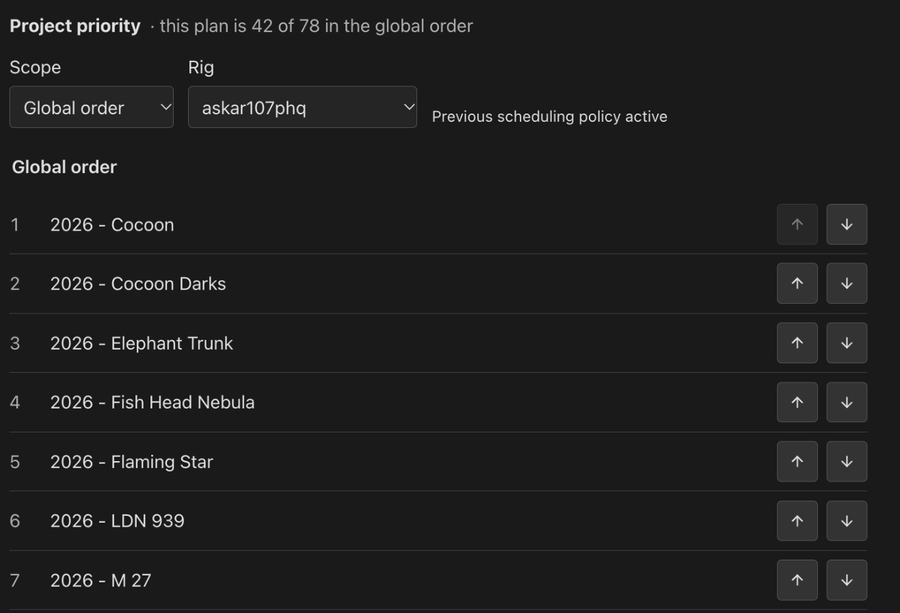
Open Priority and defaults and unfold Project priority. Move projects with the up and down buttons and save the Global order once for all rigs. A site or rig override replaces that list for its rigs; tick Use inherited order to go back to the parent order.
The highest eligible project runs first. Finished work, blocked filters, horizon and meridian limits still stop acquisition. Goal priorities choose work inside a project; they never lift a lower-ranked project. New projects follow the saved list by name until you rank them. The list holds up to 1024 projects.
Scheduling limits
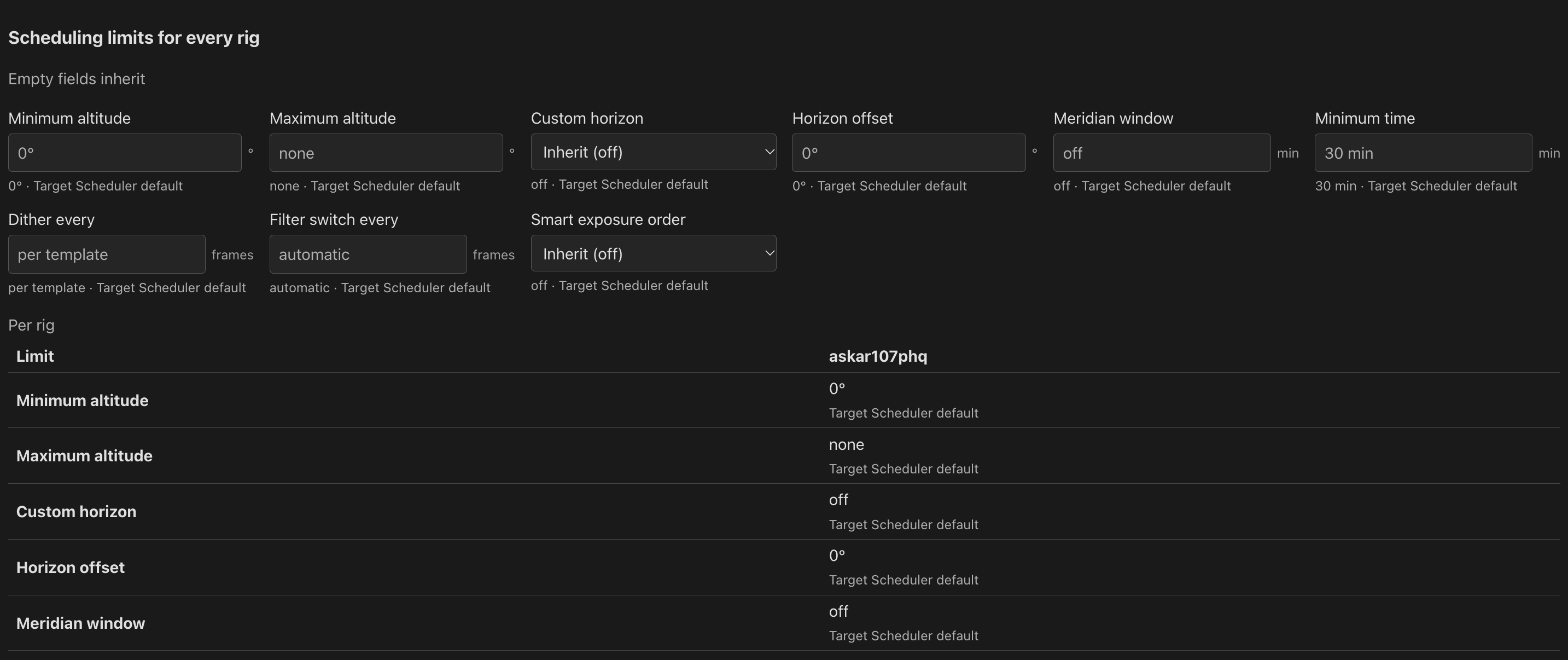
A plan carries Target Scheduler's per-project limits: minimum time, minimum and maximum altitude, custom horizon and its offset, meridian window, filter switch frequency, dither interval and smart exposure order.
- Set defaults for every plan, or for one site, on Priority and defaults.
- Set a rig's own under Setup › Limits and delivery.
- Set one plan's own on its Rigs tab under Scheduling limits for every rig. A table shows what each rig gets and where each value comes from.
The nearest scope that sets a limit wins: plan, then rig, then the rig's site, then global. An empty field inherits its value and shows the source. A limit nobody sets keeps Target Scheduler's default. Activation writes the resolved limits into each rig's project, so they hold when Target Scheduler runs the rig on its own.
Attach and detach projects
Two rigs that each made their own project for one target are two plans, since their GUIDs differ. In one plan's workspace, attach the other's project: the list offers projects in databases this plan has none in. Attaching moves the other plan's database links here and retires it. This plan keeps its own framing and goals and takes the other's only where it has none.
Detach gives a database's project a plan of its own again. When this plan has work for that rig, Detach says how many goals go and asks first. The project keeps its rows in Target Scheduler either way.
Fill in missing GUIDs
Target Scheduler skips GUIDs for existing rows when a database jumps past
its schema 22 in one upgrade, and such projects cannot be planned.
Settings › Databases says how many rows are affected and
offers Fill in GUIDs. It copies the file beside itself first
(<file>.before-guid-fill-<seconds>), then fills only the
empty GUIDs.
psf-guard -d schedulerdb.sqlite fill-guids --dry-run
psf-guard -d schedulerdb.sqlite fill-guidsWhere plans are kept
Drafts, rig profiles, sites and the template library live in
director-meta.sqlite beside the database registry, or at
--director-meta <path>. Back it up with the registry. Docker
keeps it under /data/config. Director remains the name of the
N.I.N.A. plugin, its protocol and the API.