Storage and Performance
Choose where PSF Guard keeps the files it makes, how full their disks may get, and how much of the processor its work may take. This page also covers the header's background jobs, how the server stops, what survives a restart, and the desktop app's log files. To keep copies of settings and catalogs, see Backups.
Choose where files go
Each database keeps the files PSF Guard generates in three folders, with a slug folder per database in each:
| Folder | Contents | Set with |
|---|---|---|
| Cache | Image previews, star lists, plate solves, quality scans and other per-image results | --cache-dir, [cache] directory |
| Stacks | Stacks, color previews, WBPP stacks, saved processing, and WBPP runs that have no runs folder of their own | --stack-dir, [cache] stack_directory |
| Calibration masters | Masters built from your calibration frames | --calibration-dir, [cache] calibration_directory |
Stacks and masters go in the cache unless you set a folder of their own. Set one to put them on another volume: stacks on a large network share, for example, with the cache on a fast local disk. The command line wins over the config file, and both win over Settings.
# On the command line
psf-guard server --stack-dir /mnt/nas/psf-guard/stacks \
  --calibration-dir /mnt/nas/psf-guard/masters

# Or in the server's TOML file
[cache]
stack_directory = "/mnt/nas/psf-guard/stacks"
calibration_directory = "/mnt/nas/psf-guard/masters"
Choose folders in Settings
Open Settings → Storage → Folders, in the desktop app too. Type or browse to a folder for Cache, Stacks or Calibration masters, then click Save folders. Leave Stacks or Calibration masters empty to use the cache. A folder the server's config file fixes reads Set by the server config file and cannot change here. Choosing folders needs database management. Settings asks before closing if you have unsaved folder changes.
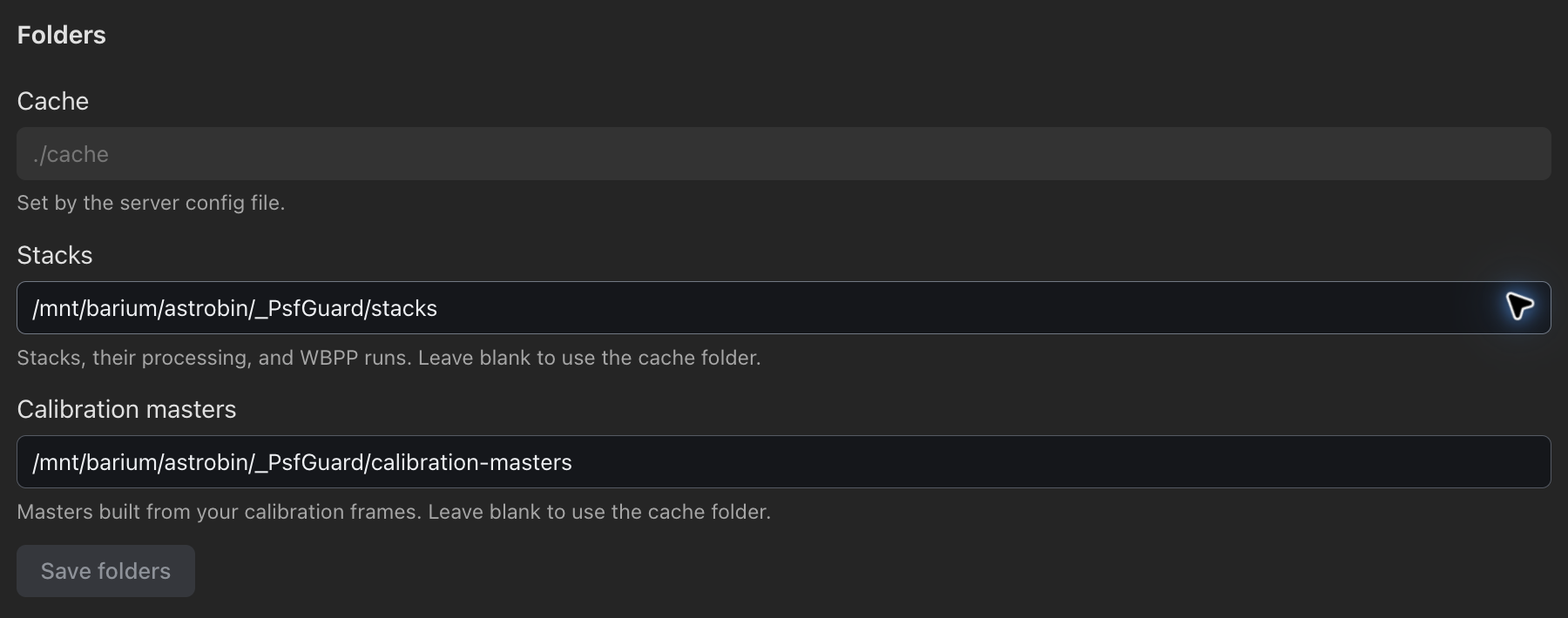
A folder saved in Settings takes effect at the next start, which moves the files there first. Until then the field shows the folder still in use. In the desktop app, Restart now restarts the whole app to carry out the move.
- Each file is renamed into place. Across file systems it is copied into
a
.partialfolder that is renamed into place before the original is removed. Copies keep their file times, which the disk limit reads. - Folders merge. A file already at the target with the same size and time counts as moved, so a start that stops halfway finishes the move the next time. A file that differs is a conflict.
- If a move fails, PSF Guard moves the files back, keeps using the old folder, says why under Folders, and tries again at the next start.
- Calibration master records in the catalog follow their files, so masters are not built again.
- A large move delays the start. The log lists each folder it moves.
- Settings refuses folders that sit one inside another.
Disk use
Settings → Storage → Disk use shows every volume the three folders sit on: how full it is, its limit, which folders and databases it holds, and how much of it is stacks, calibration masters and image previews.
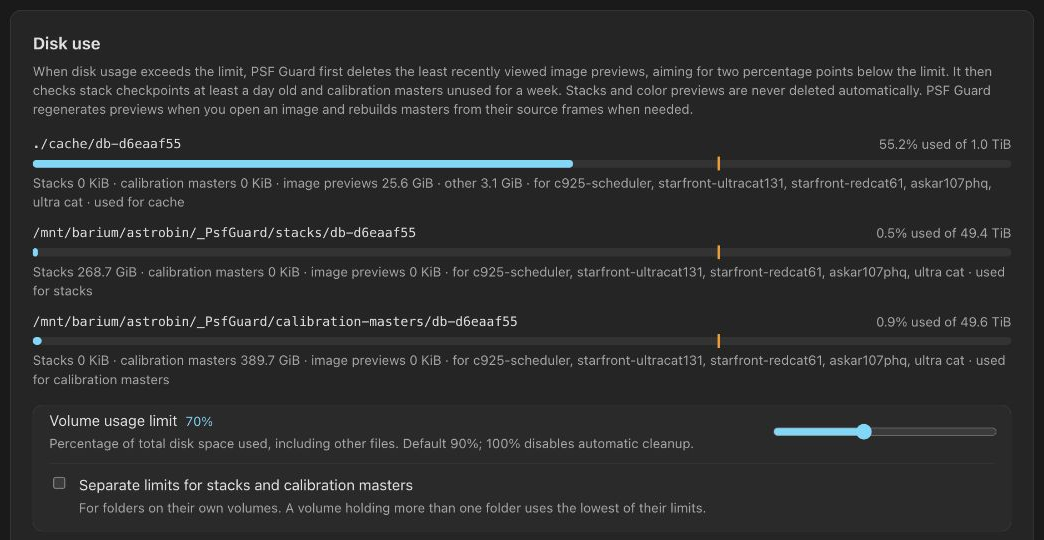
Volume usage limit (90% by default) is the highest
share of the whole volume, other files included, that PSF Guard lets it
reach, as df counts it. 100% disables automatic cleanup. Changing the
limit needs database management.
What PSF Guard deletes when a volume exceeds its limit
Every five minutes, and right after a limit changes, PSF Guard reads each volume. When one is over its limit, PSF Guard deletes only what lives on that volume, in this order:
| Order | Deleted | Rule |
|---|---|---|
| 1 | Image previews, annotated previews, star lists | Least recently viewed first, until the volume is two points under its limit. Anything viewed in the last quarter hour stays. |
| 2 | Stack resume checkpoints | A day old or more. |
| 3 | Calibration masters | Unused for a week, least recently used first. Only while no build runs, and only when that brings the volume back under. |
| Never | Stacks, color previews, WBPP stacks | They take minutes to hours to make. |
A preview comes back the next time someone opens the image, and a master is built again from its frames when a stack needs it. A master whose frames are gone, or that the catalog does not record, is never deleted: it could not be built again. A limit changed in Settings checks the volumes at once but leaves masters to the next regular pass.
Limits for stacks and masters
Tick Separate limits for stacks and calibration masters to give folders on their own volumes limits of their own: Stack volume usage limit and Calibration master volume usage limit; the first slider then reads Cache volume usage limit. A volume that holds more than one folder uses the lowest of their limits. A full stack volume never deletes previews from a cache on another disk.
- Background preview pre-generation checks disk use before each batch and stops when use reaches two percentage points below the cache volume’s limit. A batch already rendering can exceed that threshold; the next cleanup may delete those previews. Previews you open still generate as needed.
- A volume still over its limit once nothing more may go shows in red.
- Sizes are measured at most hourly, and after a cull.
- On a file system that keeps snapshots, deleted previews free no space until the snapshot goes.
- PSF Guard records when a preview or master is used, because many mounts, NFS among them, do not record reads.
- Windows servers do not read their volumes, so the limit does not apply there.
- To make previews smaller on disk, set
preview_format = "jpeg"; see Configuration & API.
Hourly cleanup
Rebuilds write new files beside old ones. Once an hour, in every database and whatever the disk limit, PSF Guard deletes what nothing uses any more:
| What | Deleted |
|---|---|
| Stacks a newer build of the same target and channel replaced | Once no index or job refers to them, after a day |
| Stretch and deconvolution results | A week after they were last selected or used |
| Artifact searches | When their stack is gone |
| Stacks of deleted projects | With the project's index. Merging projects keeps the merged project's stacks. |
| Stack resume checkpoints | After 30 days with no build writing or resuming from them. At once when no build could resume from them, such as one from an older stacking pipeline. |
| Calibration masters a newer master built from the same frames replaced | Once unused for a day and no stack refers to them |
| Half-written masters a stopped build left | A day old |
| WBPP run folders | Never: a run's output may exist nowhere else |
Masters are swept only while no stack build runs. An index that cannot be read stops the sweep of that database rather than leaving what it refers to unprotected; the server log identifies the file.
Neither the disk limit nor the cleanup touches your frames. To free the space rejected frames take, remove old rejects.
Processor use
Settings → Performance → Processor use sets how many cores each kind of work may use, as a share of the logical cores. A change applies to work that starts after it, without a restart.
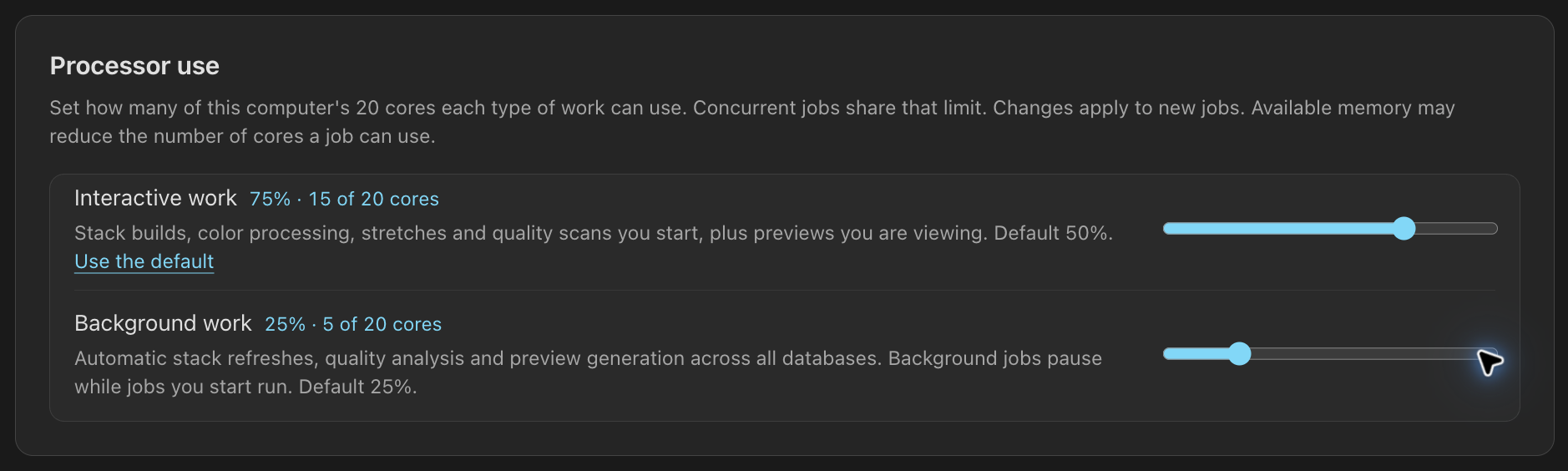
| Share | Covers | Default |
|---|---|---|
| Work you wait on | Stack builds, color and stretches you start, quality scans you start, previews being looked at | 50%, or scan_worker_ratio |
| Background work | Automatic stack refreshes, quality backfill and new-frame analysis in every database, calibration grading, flat measuring, preview pre-generation | 25%, or background_worker_ratio |
Each share is a limit for all such work together, not for each job. Jobs running at once split it: a stack refresh, quality backfill in every database and preview pre-generation share the background share. A job takes the workers free when it starts and gives them back when it ends. It never waits: one that starts while the share is spent runs on one worker. Work you wait on also pauses background work.
The share covers Seiza's own threads. Since Seiza 0.24, each job runs debayering, stretching, star detection and stacking on the workers it was given, so one background preview no longer keeps every core busy. Previews you look at, plate solves, star lists and PSF views still use every core, since background work pauses while they run. Quality scans plate-solve several frames at once, up to their share. RC-Astro's tools are programs of their own and choose their own threads.
A share chosen here is kept in the registry and wins over the config file.
Use the default goes back to the file's value. Memory can
lower the count further: a pool never holds more frames than half the free
memory allows. GET and PUT /api/settings/workers
read and set the shares; null means the default.
Background jobs in the header
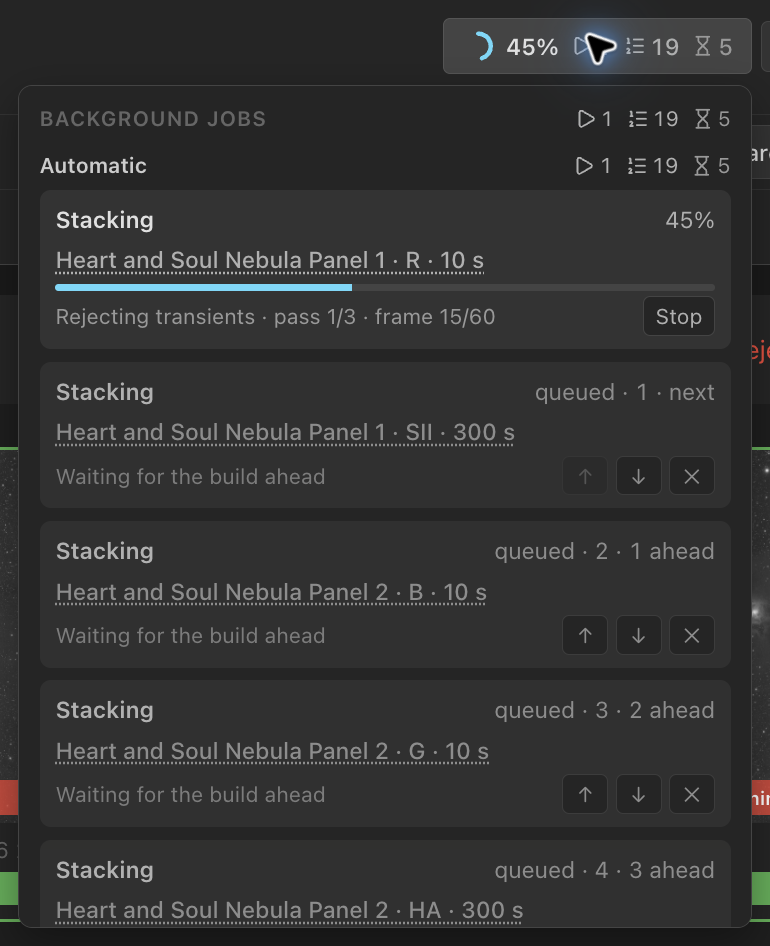
The header shows background work as one small chip: a progress ring, the overall progress percentage, and an icon with a count for each state with jobs: running (a play mark), queued (a numbered list), waiting (an hourglass) and needs you (a warning triangle). Hover a count to read its name. On a phone the chip leaves out the running count, since the progress percentage already shows running work. Hover, focus or click the chip to open the list.

The list shows jobs across all databases under two headings, each with its own counts:
| Heading | Jobs |
|---|---|
| Started by you | Stack preparation, builds and processing runs you start, reprocessing after your builds, quality scans and duplicate checks you asked for, WBPP runs, a catalog refresh you asked for, and backups and transfers started by hand |
| Automatic | Quality backfill and the analysis of new frames, automatic scans, Measuring flats, Reading frame sites, catalog refreshes on expiry or at start, automatic stack refreshes and reprocessing after those refreshes, scheduled backups, and transfers a connection's policy queued |
The list also shows previews, imports, exports, artifact searches and planning transfers to remote sites. Calibration grading, health checks, light-header reads, flat matching and catalog upkeep show their progress here. When you add or change a database, PSF Guard builds its query indexes and reads older calibration frames’ readout modes without waiting for a restart.
Previews, imports, exports, artifact searches and star catalog installations have Stop. Stopping an import rolls it back. Stopping an export keeps completed files, which the next export skips. Quality scans you start queue behind the current scan and run before database-wide analysis; that analysis pauses and repeats its interrupted target afterwards.
Under each heading, jobs that need your attention come first, then running, queued, waiting and paused work. The header counts each state separately.
- Generating previews. When the server has preview pre-generation enabled, each database with previews to write shows a job and a count of images processed. Pause keeps completed work and prevents further pre-generation until Resume or a server restart. Previews you open still generate as needed. When you start a job, pre-generation finishes the images already rendering, waits for your job, then continues from where it paused. The row explains what it is waiting for. A pass with no previews to write has no row.
- Preparing stack build. A build request appears immediately while PSF Guard reads the frames and matches calibration. You can stop it before channel builds are queued. After a restart, the request keeps its queue position and PSF Guard prepares it again.
- Queued. Stack builds, channel-processing runs and color
compositions that need new tool results share one line; WBPP runs have another.
Automatic color compositions and those waiting for another job to prepare the
same uncached inputs also use the build queue. New builds you start join ahead of
automatic builds. Each queued row shows its
position in the queue and how many wait ahead of it:
queued · 4 · 3
    ahead
, orqueued · 1 · next. ↑ and ↓ move it within the whole line, past rows under the other heading, and ✕ takes it out. Under Started by you, the arrow-to-top button (Move to top) moves a task to the front of its queue, including past automatic tasks. It runs after the current task finishes. The button is disabled when the task is already next. With automatic reprocessing enabled, processing for a channel you just built runs before your next queued build. See Re-apply processing. - Short color compositions. Compositions you start can run alongside stack builds when they reuse prepared channels, or need no deconvolution or RC-Astro and no other composition is preparing the same inputs. Only one such composition runs at a time, in request order. Its Composing color row has no build-queue position or reorder controls. While queued, it shows Waiting for the composition ahead. See Compose color while stacks build.
- Waiting. Automatic work steps aside whenever yours runs. A database quality analysis, an automatic stack refresh or automatic reprocessing that pauses shows which job it is waiting for and keeps its progress bar at the point where it paused. Waiting is normal, so these rows are drawn muted.
- Paused. Choose Pause on Analyzing database quality, Generating previews, Measuring flats or Reading frame sites to pause that automatic job for the database. Completed work is kept, so Pause needs no confirmation. The row stays visible with Resume, and newly queued work waits until you resume it or restart the server. Settings also offers Resume for quality analysis; Calibration offers it for flat measuring and frame sites. Quality scans you start still run while analysis is paused, and automatic stack refreshes do not wait for paused analysis.
- Needs you. Only jobs that need your attention use the warning color, such as a collaboration transfer held for review, before upload or after it failed. A transfer row carries its own Pause, Resume, Retry and Cancel; see Collaboration.
- Stop ends running work after asking once: Stop it or Keep. It is offered on a running stack build, a color composition, an RC-Astro processing run, a WBPP run, a duplicate check or repair, or a backup. A color composition stops at its next channel or step and ends a running RC-Astro tool immediately, keeping completed steps cached. A standalone stretch or deconvolution has no Stop and finishes in moments.
- When the server knows what work remains, the row shows it, such as
1 more
    rig to check · 2 rigs queued
on Measuring flats,another pass queuedon Reading frame sites, or3 channels to stackon a waiting stack refresh. - Click the target or database under a row to open what it works on: a build's, processing run's or WBPP run's stacks, a quality scan's sequence, a refreshed database's images, or the Calibration page for flat measuring, frame sites and duplicate checks.
- A quality scan that finished with errors stays on the chip, which reads Finished with errors once nothing else runs. Its note offers Open the sequence and stays until you dismiss it.
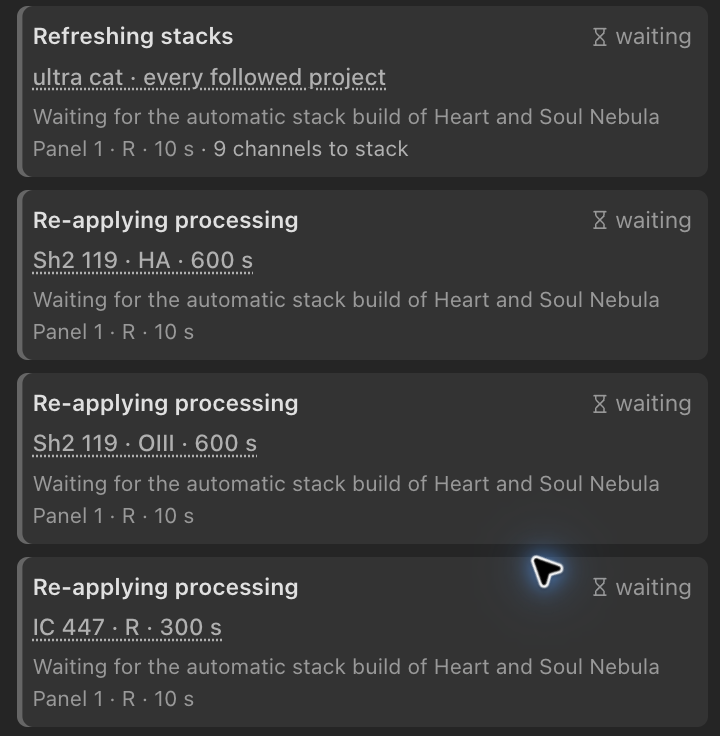
Changing a line or stopping work needs write access. A stack build's row reads, for example, Rejecting transients · pass 2/3 · frame 4/14 through the final rejection pass, a calibration master build shows which master and what Seiza is doing with it, and a processing run shows its step and when it started. Scheduled backups list here too; see Backups.
Automatic refreshes
With Rebuild stack previews on their own on, under Settings → Stacking, new frames and grade changes queue a refresh after a settling delay. A refresh still settling is not listed or counted: nothing runs yet. Once due, a refresh held back by your work or another build is listed under Automatic as Refreshing stacks, waiting, and its builds join the line when it starts. An automatic build your build stopped starts again once your work has been quiet for 30 seconds. Automatic builds use the background share. See Stacks.
Scripts can start a settling refresh at once or drop it until the next change:
# Builds running first, then the line in order, then settling refreshes under "scheduled"
curl localhost:3000/api/stack-activity

# Start one within seconds, or skip it
curl -X POST localhost:3000/api/stack-activity/scheduled/run-now \
  -H "Content-Type: application/json" -d '{"database_id":"my-db","project_id":2}'
curl -X POST localhost:3000/api/stack-activity/scheduled/skip \
  -H "Content-Type: application/json" -d '{"database_id":"my-db","project_id":2}'

# Move a waiting build (0 is next) or take it out
curl -X POST localhost:3000/api/stack-activity/<job_id>/move \
  -H "Content-Type: application/json" -d '{"position":0}'
curl -X POST localhost:3000/api/stack-activity/<job_id>/cancel
Stop the server
A stop, from Ctrl+C, a service manager's SIGTERM or quitting the desktop app, starts nothing new and lets running work reach its next safe point before the server exits, so no file or catalog write is cut off:
- A quality scan saves what it has measured.
- A stack build checkpoints the frames it has integrated and resumes from there after the restart.
- A running RC-Astro tool is killed rather than waited for; its processing run resumes after the last tool step that finished.
- Imports and calibration grading stop at a commit.
Every five seconds the log lists the work still blocking shutdown.
In the desktop app, Restart server under Settings → Server waits for the old server to finish its work, so the job queue it saves is not lost. If that work still runs after two minutes, Settings and the log say what it waits for, and the old server is left to finish; restart the whole app to end it.
After a restart
The job queue survives a restart. PSF Guard keeps a journal beside the
database registry (config.jobs.json next to
config.json), rewritten a few seconds after the queue changes
and once more when the server stops cleanly. On start it puts the queue back
before the automatic scheduler starts anything:
- A request still at Preparing stack build is not restored. Start it again after the server restarts.
- Stack builds, color compositions and channel-processing runs return from the journal, each prepared again from the current catalog. Color compositions use the same queue rules as new requests. A job whose database is gone, or that finished before the restart, is skipped with a note in the log.
- A build cut off part way resumes from its checkpoint where it can. One cut off by two crashes or killed processes in a row is not started a third time, since it is the likelier cause of them. A clean stop does not count.
- A processing run resumes after the last tool step that finished. One cut off by two restarts in a row, clean stops included, is not started a third time, and the log says so.
- A build whose disk is not mounted yet is retried every minute for half an hour.
- Automatic refreshes still settling keep their due times, or run at once if those passed.
- Waiting WBPP runs keep their place. A WBPP run the restart cut off shows as stopped rather than starting again from nothing; start it again when you are ready.
- With automatic previews on, every database is checked once after a start, so frames that arrived while the server was down still reach their stacks.
A server started without a registry keeps no journal.
Desktop log files
The desktop app writes one log file a day and keeps a week of them. Open logs, at the foot of Settings, opens the folder:
| Platform | Log folder |
|---|---|
| Windows | %LOCALAPPDATA%\com.theatrus.psf-guard\logs |
| macOS | ~/Library/Logs/com.theatrus.psf-guard |
| Linux | ~/.local/share/com.theatrus.psf-guard/logs |
The log records the server's console output: folder moves, what a stop waits for,
the queue put back after a restart, and each frame a stack leaves out or rejects, and
why. RUST_LOG sets the level; the default is info. A server
run from the command line or in Docker logs to its console.