WBPP Runs
Run PixInsight's WeightedBatchPreprocessing (WBPP) on the server from PSF Guard, against the graded lights where they already are, with each night's flats and darks matched. The masters come back as stacks in the Stacks view.
Point PSF Guard at PixInsight
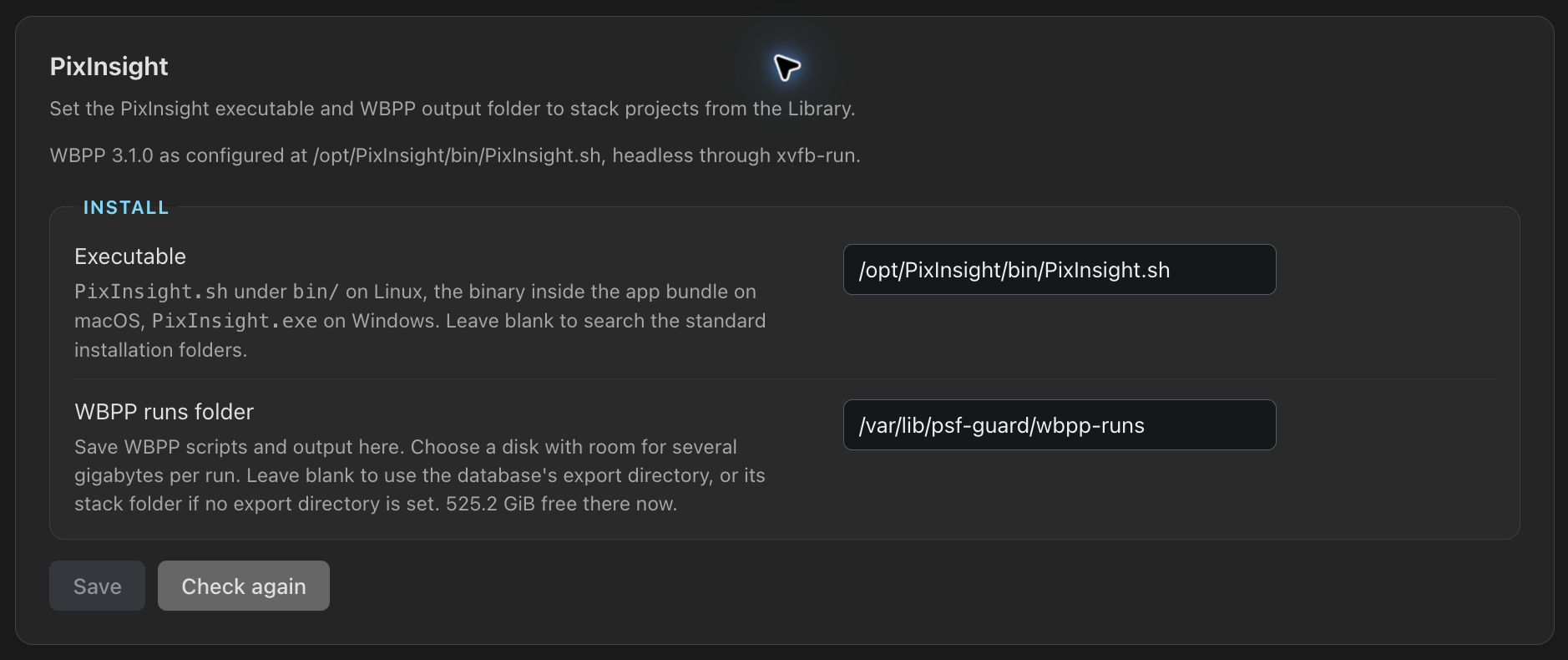
A run needs an editor and a PixInsight install the server can reach. Choosing the program and runs folder sets paths on the server, so it needs the database-management grant, which the desktop app always has; see Server Accounts. Set it up once under Settings → Setups → PixInsight:
- Executable: leave empty to look in the standard places
(
/opt/PixInsight,~/PixInsight, the macOS Applications folder, Program Files), or point it toPixInsight.shunderbin/on Linux, the binary inside the app bundle on macOS, orPixInsight.exeon Windows. - WBPP runs folder: where every database's runs go, as
<folder>/<database>/<project>-<time>/. A run writes gigabytes of calibrated and registered frames, so pick a disk with room; the panel shows the space free. Left empty, runs go under the database's server export directory, else its stack folder.
The panel shows the PixInsight installation, the WBPP version and whether the server has a display. PixInsight's licence must already be activated for the account the server runs as; activation needs the real GUI once. Settings asks before closing if you have unsaved PixInsight changes.
Run on a headless server
PixInsight needs a display. On a Linux server without one, install the
xvfb package. PSF Guard then runs PixInsight through xvfb-run
-a on its own, and the settings panel shows that it uses xvfb-run. For an
exported runner script, put xvfb-run -a in front of
run-wbpp.sh.
Stack in WBPP
Click Stack in WBPP beside Build stacks in the Stacks view, or on a project's full card in the Library. From Stacks the run covers the project, or the target chosen in the header. WBPP stacks a project's targets together, so for a project with several targets the button stays off in Stacks until you choose a target in the header.
The dialog asks for:
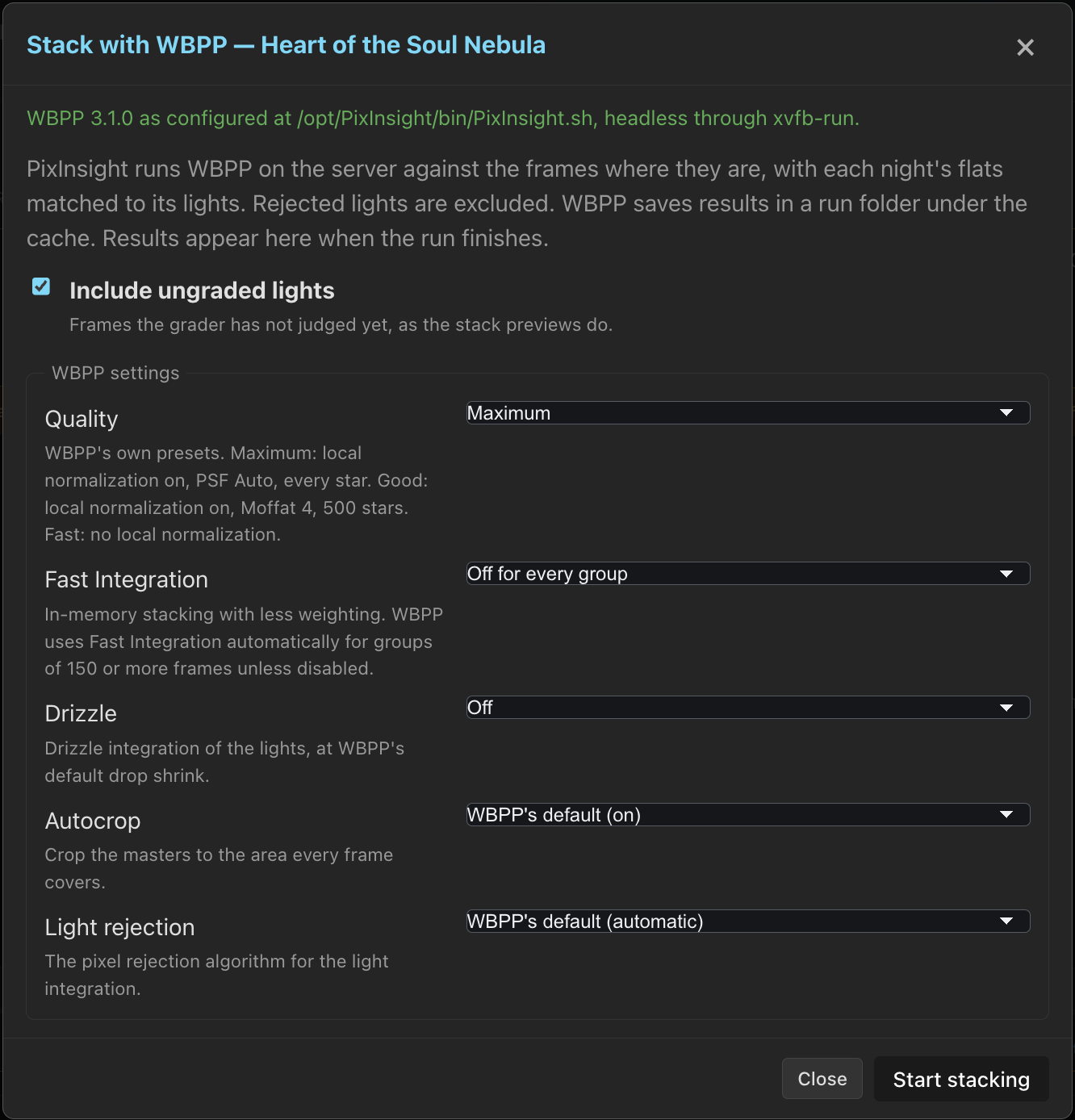
- Include ungraded lights, ticked by default: Pending frames go in, as they do in stacks. Rejected lights never do.
- WBPP settings: see below.
- More WBPP parameters: any other
name=valuepair WBPP accepts, one per line. WBPP lists them with Alt+A in its dialog. - Run folder: a folder for this run only, in place of the runs folder from Settings. A folder outside the runs folder needs the database-management grant.
- Save the masters when done: copy the masters next to your finished work; see below.
Click Start stacking. PSF Guard plans the frames as an
export would, writes run-wbpp.js into the run folder, and starts
PixInsight on it headless.
WBPP settings
A headless run starts from WBPP's own defaults, not from what its dialog last saved. Set the run's options here. Drizzle and Fast Integration have no WBPP command-line parameter; the runner script sets them on every light group itself. Settings → Setups → Export stores the defaults that runs and WBPP exports start from.
| Setting | Choices | What it does |
|---|---|---|
| Quality | Maximum, Good, Fast | WBPP's presets. Maximum (default): local normalization with PSF Auto and every star. Good: local normalization with Moffat 4 and 500 stars. Fast: no local normalization. |
| Fast Integration | Off for every group, WBPP decides, On for every group | In-memory stacking with less weighting. WBPP switches any group of 150 frames or more to it on its own, which no one sees in a headless run, so the default is off. |
| Drizzle | Off, 2x, 3x | Drizzle integration of the lights at WBPP's default drop shrink and kernel. Off by default. |
| Autocrop | WBPP's default (on), On, Off | Crops the masters to the area every frame covers. |
| Light rejection | WBPP's default (automatic), or an algorithm | Pixel rejection for the light integration: Winsorized sigma clipping, Linear fit clipping, Generalized ESD, Robust Chauvenet, or Percentile clipping. |
Calibration frames per light
A run gets the calibration frames a PSF Guard stack would build its masters from: per light, one coherent set of each kind, not every frame the library matched. Matching uses the settings for each light's rig under Settings → Calibration:
- The flat rotation, focal length and session limits decide which flats share a light's session.
- The dark settings decide its darks and bias. By default Dark choice prefers a complete set to a nearer, smaller one; see Dark masters. A rig set to do without darks gets none.
- Masters from other software go only when their setting uses them.
- Frames the library keeps out stay out, and the dialog counts them: frames graded poor, such as darks that caught stray light, and frames kept out by hand.
With Leave out lights that can't be calibrated on, under
Settings → Calibration → Stacks and exports, the run leaves
out the lights a stack would, and the dialog shows how many lights it excluded. The
dialog lists the matching settings that differ from the defaults, after
Calibration frames matched with:, and run-wbpp.js lists them
too, with the rigs that get no darks and the lights left out. A run always plans
afresh into a new folder.
Flats by flat group
Each light carries a SESSION keyword for its night, so
each night's lights calibrate with that night's flats, and the nights
integrate together afterwards. The flats follow the rig's
flat groups: a light gets flats from
its own side of each measured change, as a stack would.
- Lights of one night that take different flats get a session each,
SESSION_<night>-<digest>, so WBPP builds each its own master. - WBPP cannot correct flats across a change. A light a stack would give
corrected flats gets the flats as shot, in a
SESSION_<night>-across-<key>session of its own. - The dialog lists the measured changes used for matching, after Flats chosen around measured changes:, and counts the lights that take flats from across one, which WBPP may not calibrate as a PSF Guard stack would. The runner's notes list those lights.
Dark sets per night
When lights of one exposure were matched to different darks, say each
to its own complete night, each set of darks gets
a DARKSET_<night> keyword named for its nearest dark, and
WBPP pairs each set only with its own lights instead of averaging every
night's darks into one master. Bias, dark flats and flats carry no
DARKSET and serve every light. The same rule shapes WBPP
exports; see the WBPP layout.
Follow the run
The dialog follows WBPP's own log: the step it is on, the time so far, the last lines, and every line WBPP marks as an error. It counts the lights and calibration frames, and what it left out: catalog rows with no file on disk, kept-out calibration frames, and lights that can't be calibrated. It shows free space at start and the calibration notes above.
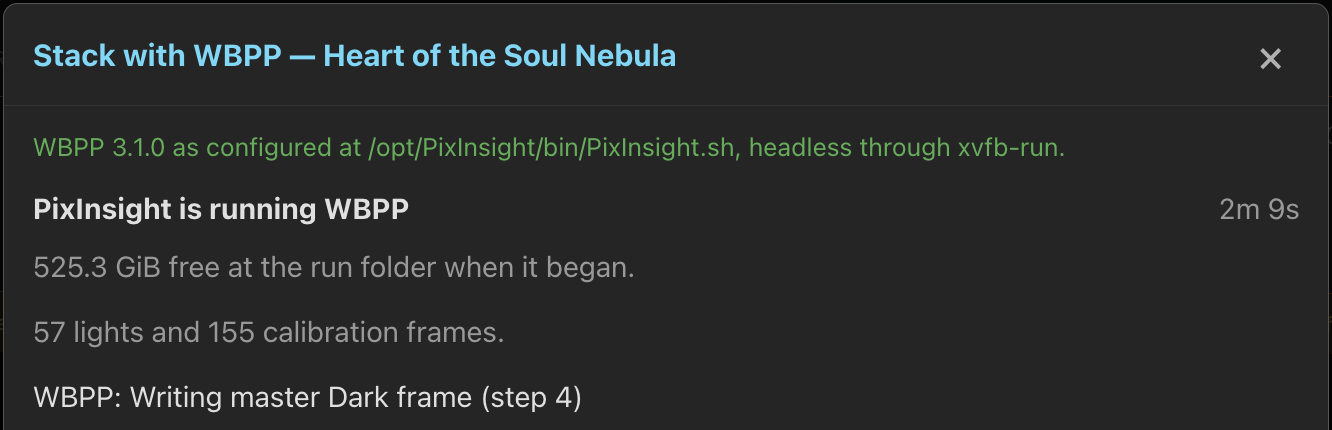
WBPP writes its log between steps, so a long integration shows nothing new for a while; the clock keeps counting while PixInsight works. Stop PixInsight ends the run.
When PixInsight exits, the dialog lists the masters WBPP wrote, each a
download, and links to run-wbpp.js, the WBPP log and
PixInsight's console output. Everything stays in the run folder on the
server's disk. A run that wrote no master is reported as failed, with the
last error WBPP logged. Only an editor reads a run's files, and a link in a
run folder cannot lead outside it.
The Library shows every database's run under way, just finished or in line, in any browser tab. The project's action then reads Stacking in WBPP…, Queued for WBPP, WBPP masters ready or WBPP failed, and either reopens the dialog. × on a finished run's row clears it from view; the run folder stays on disk.
Queue runs
PixInsight takes every core it can get, so the server runs one WBPP job at a time across all databases. Starting a run while another is going queues it: the dialog shows the run PixInsight is busy with, its button reads Queue stacking, and Show that run switches to the running one. A queued run starts on its own when the running one ends, with the settings it was queued with.
The Library lists queued runs with their place; × or
Remove from queue in the dialog takes one out. The header's
background jobs list the running job and queued jobs across all databases,
under Started by you, a queued run with its place, such as
queued · 2 · 1 ahead. ↑ and ↓
change the order one place at a time. Move to top moves a
queued run to the front so it starts after the current run ends. The button
is disabled when the run is already next. × removes a run, and
Stop ends the running one after asking once. These controls
need an editor.
While one database copies WBPP masters to its process directory, runs for other databases can start as soon as PixInsight is free. Runs for the copying database still wait and keep their order.
The line survives a restart: waiting runs keep their order. A run the restart cut off shows as stopped rather than starting again from nothing; start it again when you are ready. See Storage & Performance.
See the masters as stacks
When a run started from PSF Guard finishes, PSF Guard imports its master lights as stacks before PixInsight starts the next run. They show under WBPP stacks, below PSF Guard's own stacks in Stacks, each with a preview and its FITS. In Combine channel stacks they appear as channel sources marked WBPP. A separate WBPP color card combines masters that cover the required channels, alongside PSF Guard's own stacks and exposure groups. A target with only WBPP masters and no exposure split uses the standard color card. See Compose WBPP masters.
Source labels include the sub-exposure when known, such as R (WBPP, 300 s). If WBPP made several masters for one filter, choose the inputs in Custom combination, or in the card's source menus when exposure groups are off. PSF Guard does not mix WBPP and its own stacks automatically.
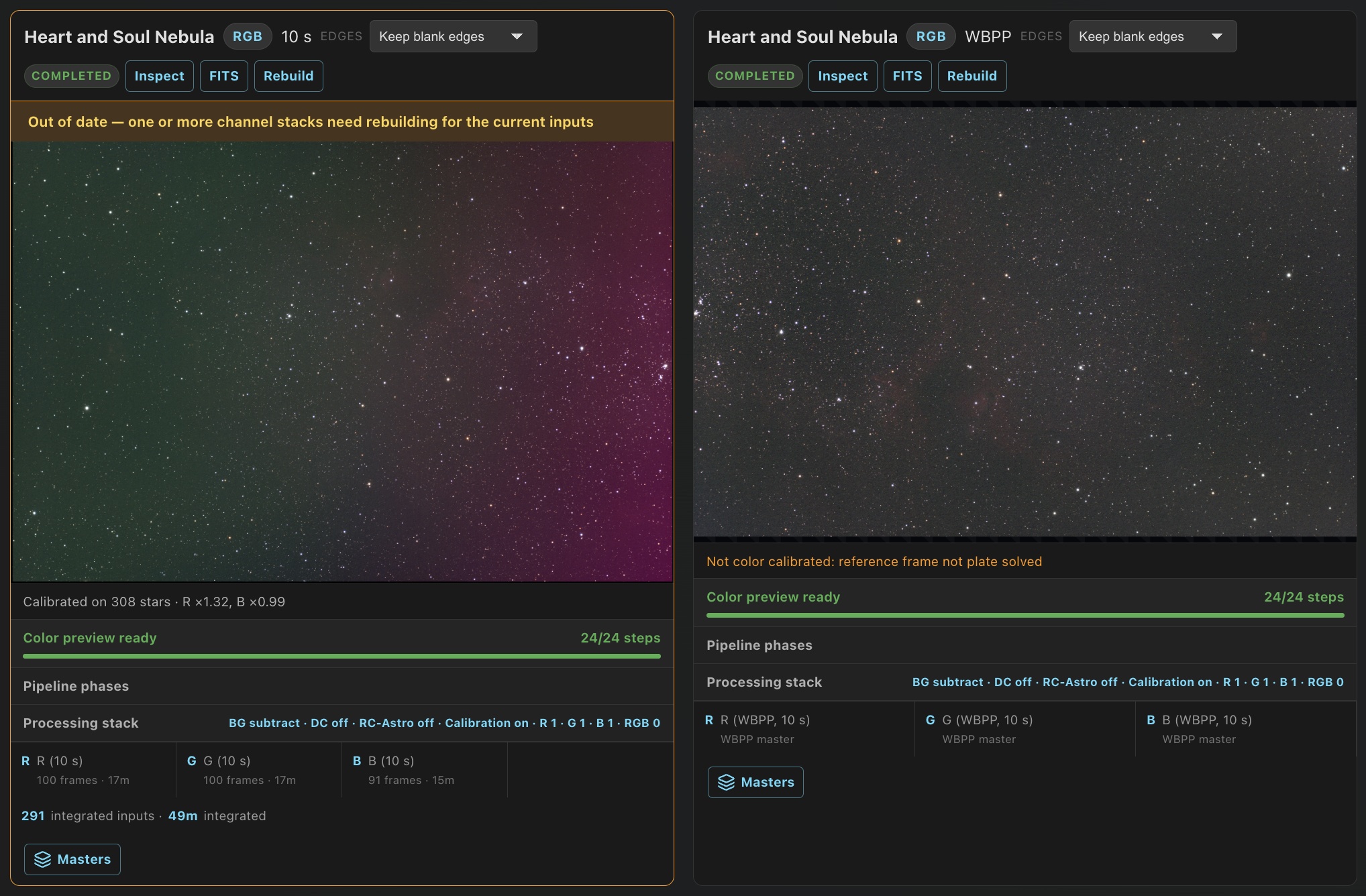
- One master is taken per filter and exposure. PSF Guard prefers one without drizzle, since color composition aligns channels of one scale, and then a cropped one. A drizzled master is taken when it is the only one.
- Masters are tied to a target only when the run covered one target. A run across several targets mixes them, and its masters are not taken in.
- WBPP records no frame count in a master, so its card says WBPP master.
- WBPP stacks never replace PSF Guard's stack of the same channel. A newer master for the same target, filter and exposure replaces the older one.
- An RGB master, such as one from a color camera, previews in color with a stretch per channel.
If importing the masters fails, the section explains the error and offers Take in the last run to try again. It reads only that run's folder and needs an editor.

Keep the masters with your finished work
Many people keep finished work per rig beside the frames: a
_Process folder next to _Source, one folder per
processing project, and the WBPP masters in master/ inside it.
Give the database a Process directory under
Settings → Databases, and the run dialog offers to save
the masters there.
Enter the project's folder name and tick Save the masters when
done before a run, or click Save masters after it.
The masters are copied to
<process directory>/<folder>/master/. PSF Guard
remembers the folder name per project. Nothing is overwritten: a file of the
same size is taken as the same file and skipped, and one of a different size
is left alone and listed. Only the masters are copied; the calibrated and
registered frames stay in the run folder.
Start runs from an agent
The MCP tools start_wbpp_run and
cancel_wbpp_run start and stop a run, and
get_jobs reports its progress. They need write access, as the
dialog does. See MCP for Agents.
What can go wrong
| Symptom | Check |
|---|---|
| PixInsight not found | The settings panel lists where it looked. Enter the executable's path in Executable. |
| No display | Install xvfb on the Linux server. |
| Frames left out | The run lists each frame by its full path. A catalog row whose file is not under the database's image folders is left out and counted. |
| Fewer calibration frames than expected | Frames the library keeps out, graded poor or kept out by hand, stay out, and the dialog counts them. |
| Fewer lights than expected | Leave out lights that can't be calibrated is on. The dialog counts the lights left out, and run-wbpp.js lists an example and the reason for excluding it. |
| A light's flats may not match | The light uses flats from the other side of a measured change, which WBPP cannot correct. The runner's notes list such lights. |
| WBPP wrote no master | Read WBPP's log from the dialog. The usual causes are a group WBPP could not register, or calibration frames that do not match. PixInsight's console output is empty in this mode. |
*** Error: No database files have been selected. | The server's PixInsight has no local star catalog for WBPP's plate solver. WBPP solves another way and goes on. |
| A path with a comma | WBPP's command line separates parameters with commas, so PSF Guard refuses a run folder or frame path containing a comma. |
| Masters not in Stacks | The run covered several targets, or taking them in failed; use Take in the last run. |