Run processing on workers
Use another computer's GPU, processor cores or RC-Astro licenses while the server keeps the catalog and results.
Workers run channel and mosaic stack builds, or BlurXTerminator, NoiseXTerminator and StarXTerminator. WBPP runs stay on the server. Install the same PSF Guard release on the server and each worker. RC-Astro tasks also need the tools, models and licenses on the worker.
Add a worker
You need an editor account on a server that allows database management.
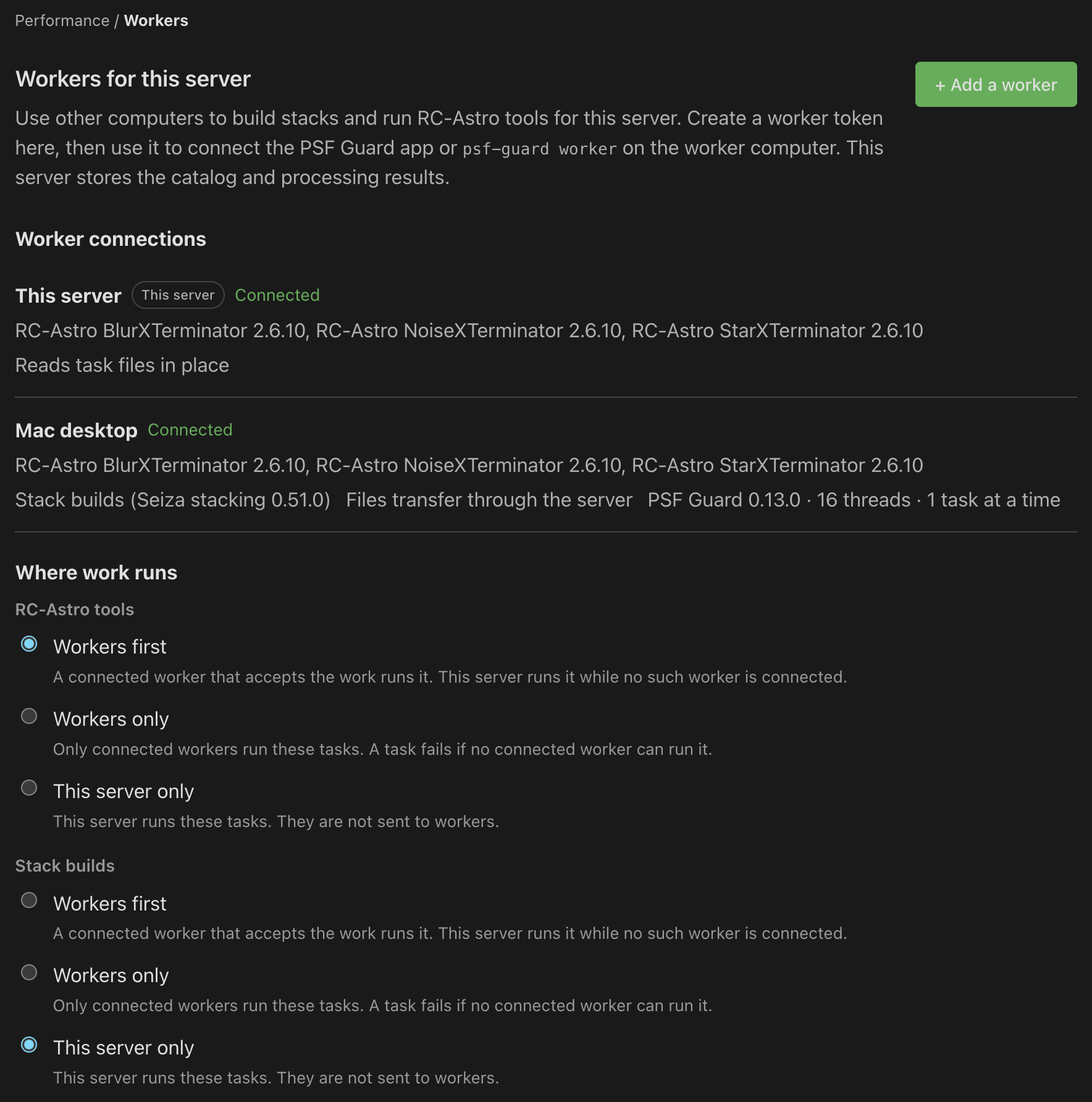
- On the server, open Settings → Performance → Workers and click + Add a worker.
- Enter a worker name and click Create token. Copy the token; PSF Guard shows it only once.
- Keep the token for setup in the desktop app, or copy the generated command for a terminal worker.
Run a worker from a terminal
On the worker computer, run the shell or PowerShell command shown by the server’s Settings. Replace THIS-SERVER:PORT with the server’s network address when the command contains that placeholder. For example:
PSF_GUARD_WORKER_TOKEN=psfw_… psf-guard worker --server http://192.168.1.10:3000Leave the process running. Ctrl-C stops the worker and returns unfinished tasks to the server's queue. --work stack accepts stack builds only; --slots N allows 1–16 concurrent tasks. Start with one for GPU work. Workers that only stack need no RC-Astro installation.
Choose where work runs
Under Where work runs, choose stack-build and RC-Astro policies independently: Workers first, Workers only or This server only. With Workers first, this server handles a task when no suitable worker is connected. With Workers only, the task fails if no connected worker can run it. Stack builds stay on the server unless you change this choice. The channel card shows which worker stacked it; its Live stack image follows the worker's progress.
Task files transfer through the server by default. A worker can use shared storage with --files shared when both computers can access the required folders. Each worker uses its own CPU and memory limits. Changing the server’s limits does not change those limits on workers.
Run a worker from the app
First create a worker token on the server. Then configure the app on the worker computer:
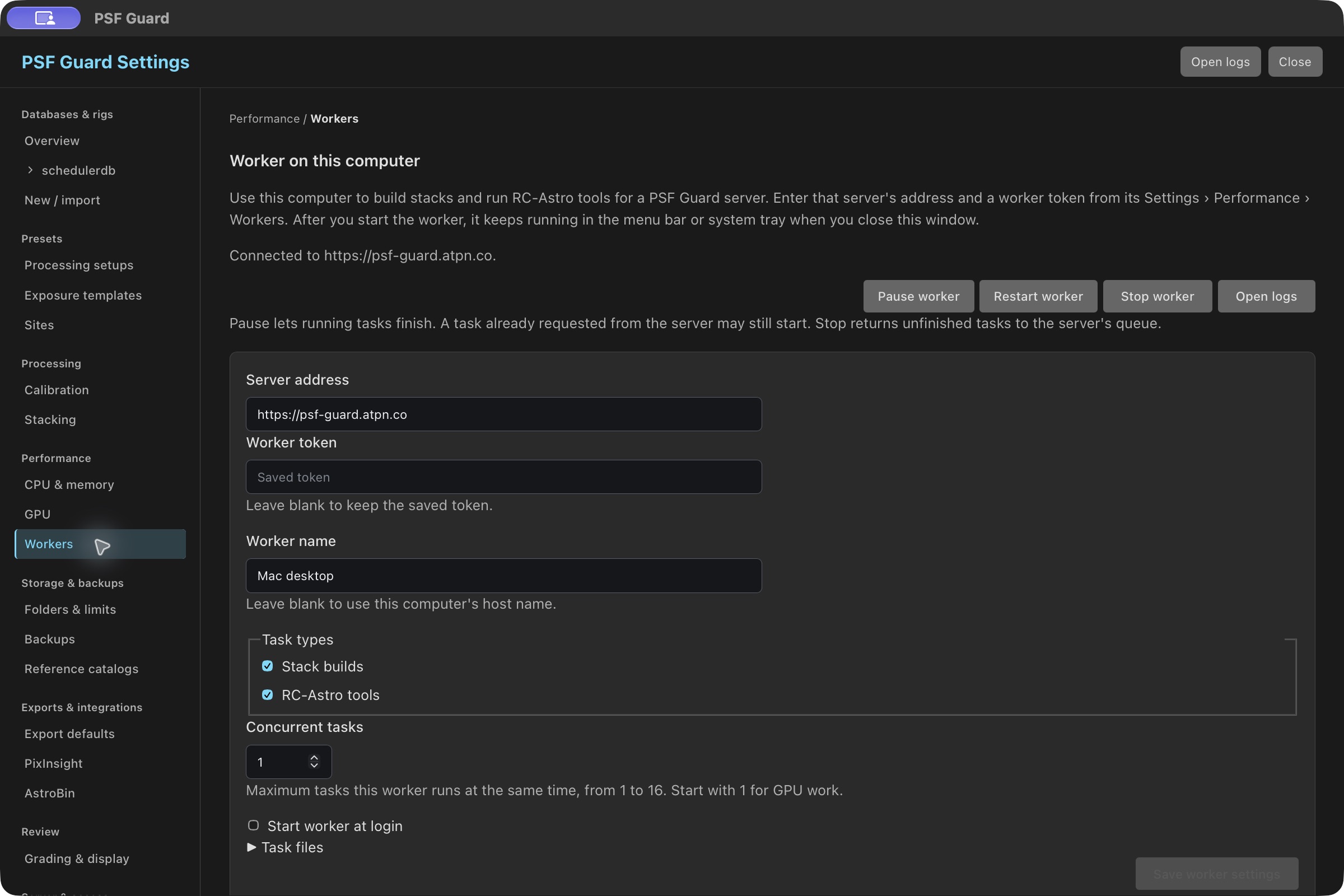
- On macOS or Windows, open Settings → Performance → Workers → Worker on this computer.
- Enter Server address and Worker token. Leave Worker name blank to use the computer's host name.
- Select Stack builds, RC-Astro tools or both under Task types, and choose Concurrent tasks.
- Optionally select Start worker at login. Click Save worker settings, then Start worker.
The worker continues in the menu bar or system tray after you close the window. Pause worker stops new requests while current tasks finish; Stop worker returns unfinished tasks to the queue. After editing settings, save and click Restart worker. Leave Worker token blank to keep its saved value.
After closing the app window, open the worker’s menu-bar or tray icon to check its status. Choose Pause worker or Resume worker to control new tasks, Open PSF Guard to return to the app, or Quit worker to stop the worker and remove its icon.
Start a worker before login
Windows: save settings in Worker on this computer, turn off desktop login startup and stop the desktop worker, then run psf-guard-cli worker-service install in an administrator PowerShell. Run it again after saving new settings or updating PSF Guard. The service uses its own copies of the app and settings; desktop controls do not control it.
Linux: the RPM and Debian packages install a psf-guard-worker systemd service without enabling it. Set the address and token in /etc/psf-guard/worker.conf. On Debian, first copy /usr/share/doc/psf-guard/worker.conf.example there with permissions that only root can read. Start it with:
sudo systemctl enable --now psf-guard-worker
journalctl -u psf-guard-worker -f
Fix an upload rejected by a proxy
A reverse proxy can refuse a worker's result before it reaches PSF Guard. The failed run and worker log identify an upload refused as too large, including the file and the limit to check.
- Read the failed run or worker log for the refused file and upload path.
- Raise the proxy's upload limit for
/api/workers/v1/, including any prefix in the server URL. For nginx, setclient_max_body_sizeto allow the result file. - Reload the proxy configuration and run the processing again.
PSF Guard accepts worker results up to 16 GiB. For nginx, this example permits that size and streams the request to PSF Guard:
location /api/workers/v1/ {
    client_max_body_size 16g;
    proxy_request_buffering off;
    proxy_read_timeout 600s;
    proxy_pass http://127.0.0.1:3000;
    proxy_http_version 1.1;
    proxy_set_header Host $host;
}
Adjust the route and upstream address for your server. A connection failure alone does not prove that the upload limit caused it; check the proxy log.
For shared storage, path mappings, service accounts, GPU setup and recovery, read the full worker guide.